Blogs
Why Does MP4 Make Duplicate Files in My Folder
Are duplicate MP4 files clogging up your folders and taking up space? You’re not alone. Many Windows and Mac users have this annoying problem where the same MP4 video shows up twice or sometimes multiple times without any explanation.
In this tutorial, we’ll answer: Why does MP4 make duplicate files in my folder? More importantly, you’ll learn how to fix duplicate MP4 files, how to remove them safely, and how to prevent them from happening again.
By the end of this guide, you’ll know:
- The most common reasons for MP4 duplication;
- How to delete duplicate MP4 videos manually and with tools;
- Proven ways to stop MP4 from duplicating in your folders.
Why Does MP4 Make Duplicate Files in My Folder?
Before we dive into potential fixes, it’s essential to understand why duplicate MP4 files are duplicated in the first place. In most situations, the problem does not come from the video file itself, but rather from how your computer, software, or cloud storage manages it.
Here are the most common causes:
1. Cloud Sync Conflicts
When using services like OneDrive, Google Drive, or Dropbox, you may notice duplicate MP4 files being created in situations such as:
- The file is edited on two different devices at the same time.
- Internet connection disconnects while syncing.
- Cloud platforms generate “conflict copies” to prevent data from being overwritten.
Example: You rename an MP4 on your laptop, but your phone still has the old version. When the cloud syncs both versions, it treats them as separate files, resulting in duplicates.
2. Multiple Downloads of the Same File
Browsers and download tools can store the same video multiple times under these conditions:
- The download button is clicked more than once.
- The download fails midway and restarts.
- Auto-save features are enabled in specific apps or media players.
That’s why you might come across filenames like video.mp4, video(1).mp4, video(2).mp4.
3. Media Player or Editing Software Glitches
Certain applications generate temporary or autosave files while you’re watching or editing videos. If the software crashes or fails to shut down properly, those temporary files may be left behind as duplicates.
Tools like VLC, Filmora, or Adobe Premiere can create backup versions if an error occurs during use.
4. File Transfer Interruptions
When moving MP4 files from a USB drive, SD card, or external hard drive, an incomplete transfer (e.g., unplugging the device too early) may cause your system to create partial or duplicate files.
In such cases, you may find one working video and another “damaged” copy stored in the same folder.
5. Backup Software Settings
Certain backup programs are configured to save every version of a file. Without proper adjustment, this can result in multiple copies of the same MP4 videos if backups are performed often.
6. Malware or System Errors
Though less frequent, harmful software or corrupted file systems can cause corrupted file systems that generate unnecessary duplicates. This issue often appears alongside other problems such as slow system performance, random crashes, or missing files.
How to Delete Duplicate MP4 Files in a Folder
Now that you know the causes, it’s time to clean up. The good news is you don’t need to be a tech expert to remove duplicate MP4 videos. Below are three options, depending on your preference.
Method 1: Manual Cleanup (Windows & Mac)
On Windows (File Explorer)
- Open the folder containing your MP4 files.
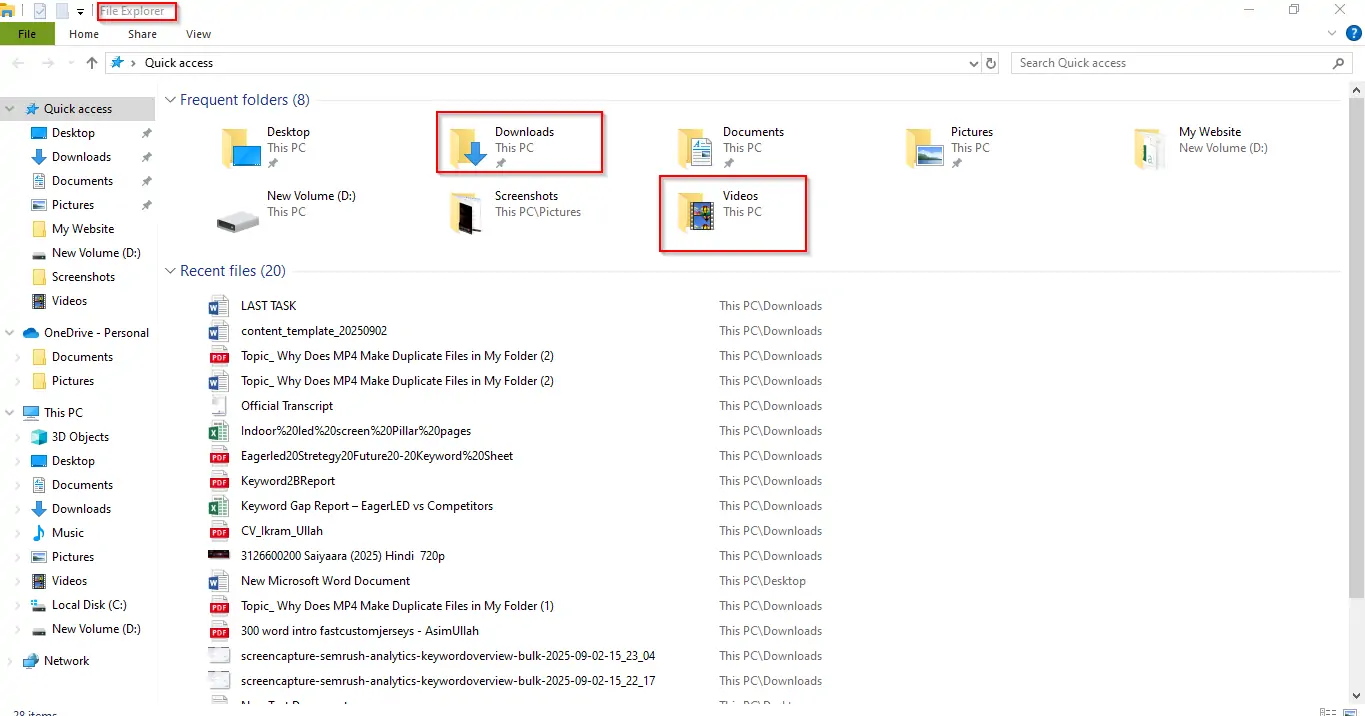
2. Sort files by Name or Size. Duplicate MP4s usually have the same name with “(1), (2)” added.
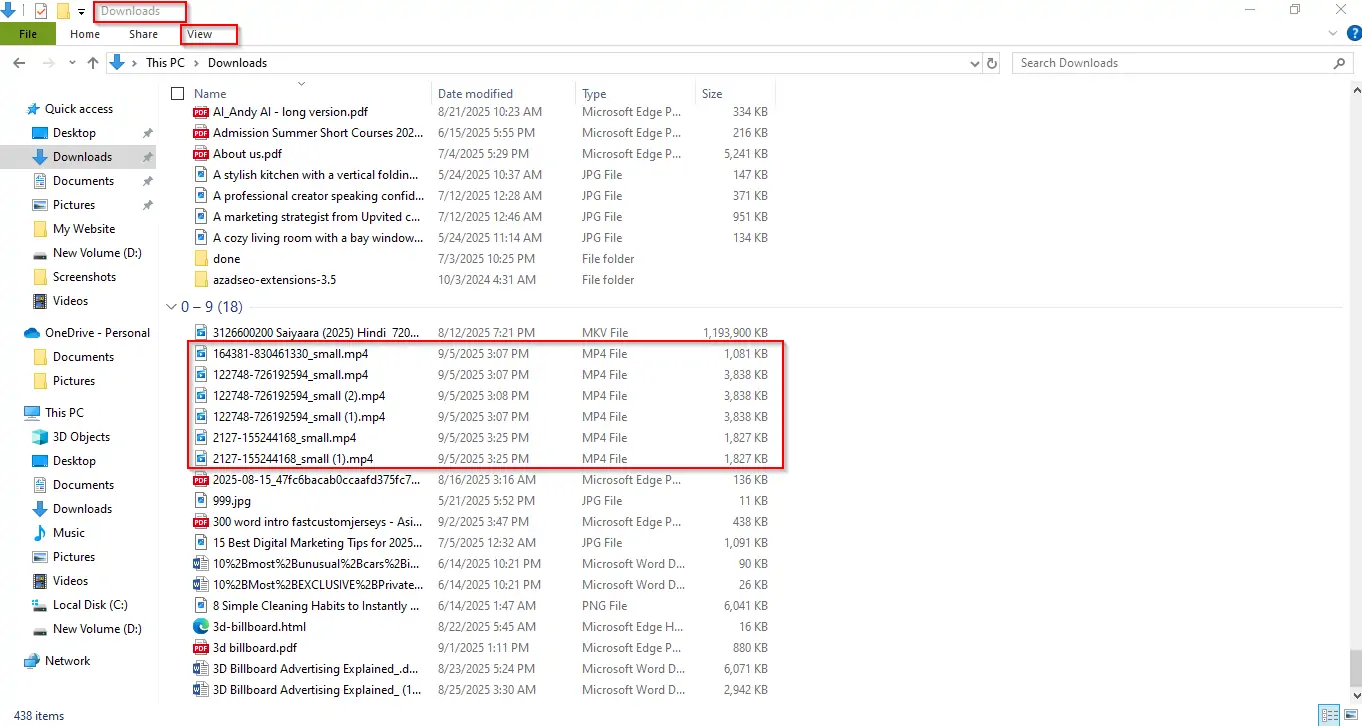
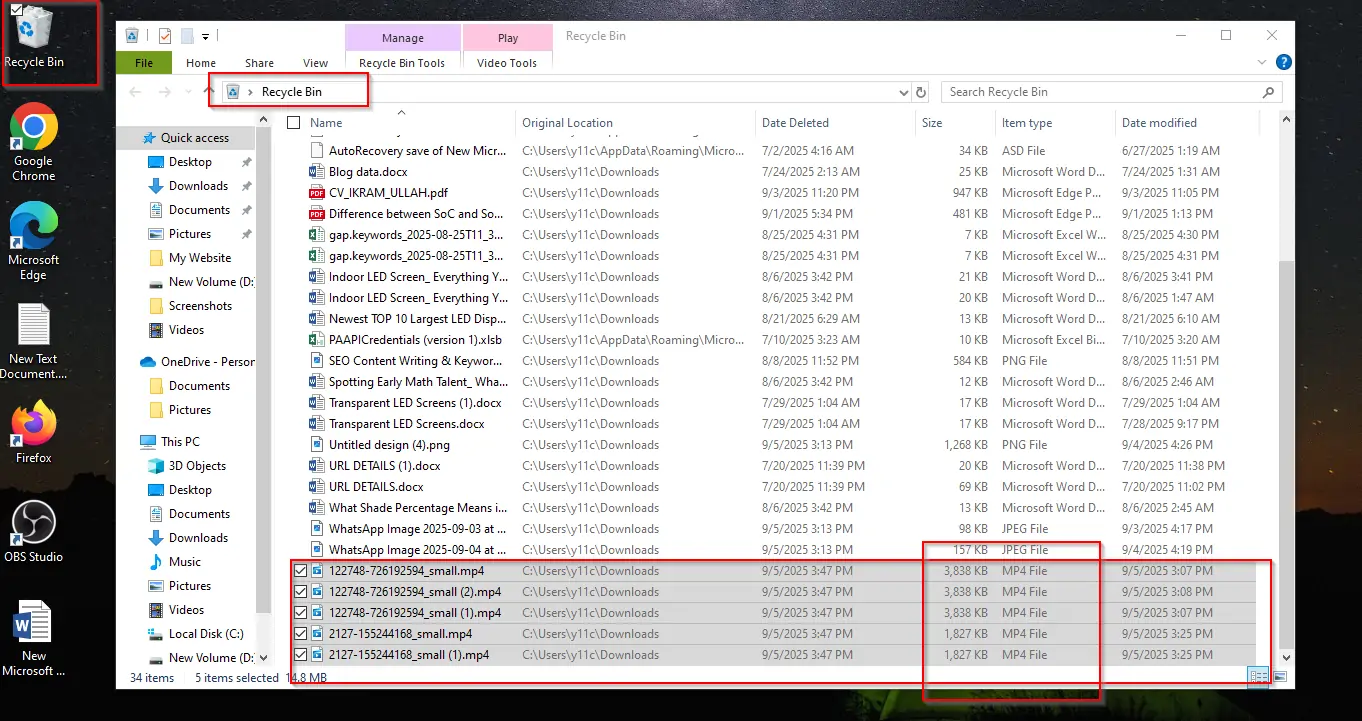
3. Select the duplicates and press Delete. Empty the Recycle Bin to free up space.
Mac (Finder)
- Open Finder and go to your video folder.
- Use the Search bar to filter files by “.mp4”.
- Switch to List view and sort by Name or Size.
- Select the duplicate MP4s → drag to Trash.
- Empty Trash to finish cleanup.
This is good for smaller folders. For hundreds of videos, try the next option.
Method 2: Use a Duplicate File Finder Tool (4DDiG Duplicate File Deleter)
If you have hundreds of MP4 files, removing duplicates manually will take forever. A faster option is to use a tool that automatically finds and removes identical files. One of the tools that most guides don’t mention is 4DDiG Duplicate File Deleter.
This software uses advanced algorithms to find duplicate MP4 videos not just by filename, but also by file content. It works on both Windows and Mac, and can even scan external drives and cloud storage services like Google Drive or OneDrive. That makes it perfect for keeping your media folders clean and organized.
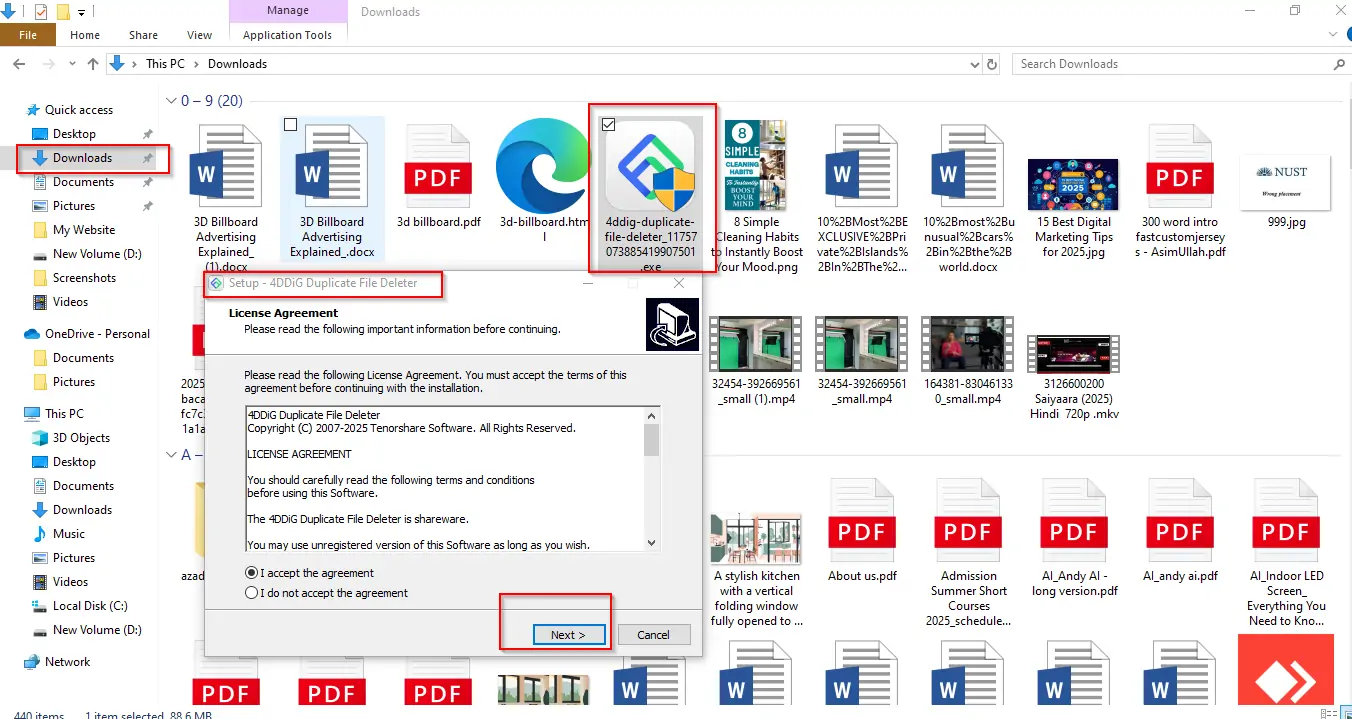
Step 1: Download and Install
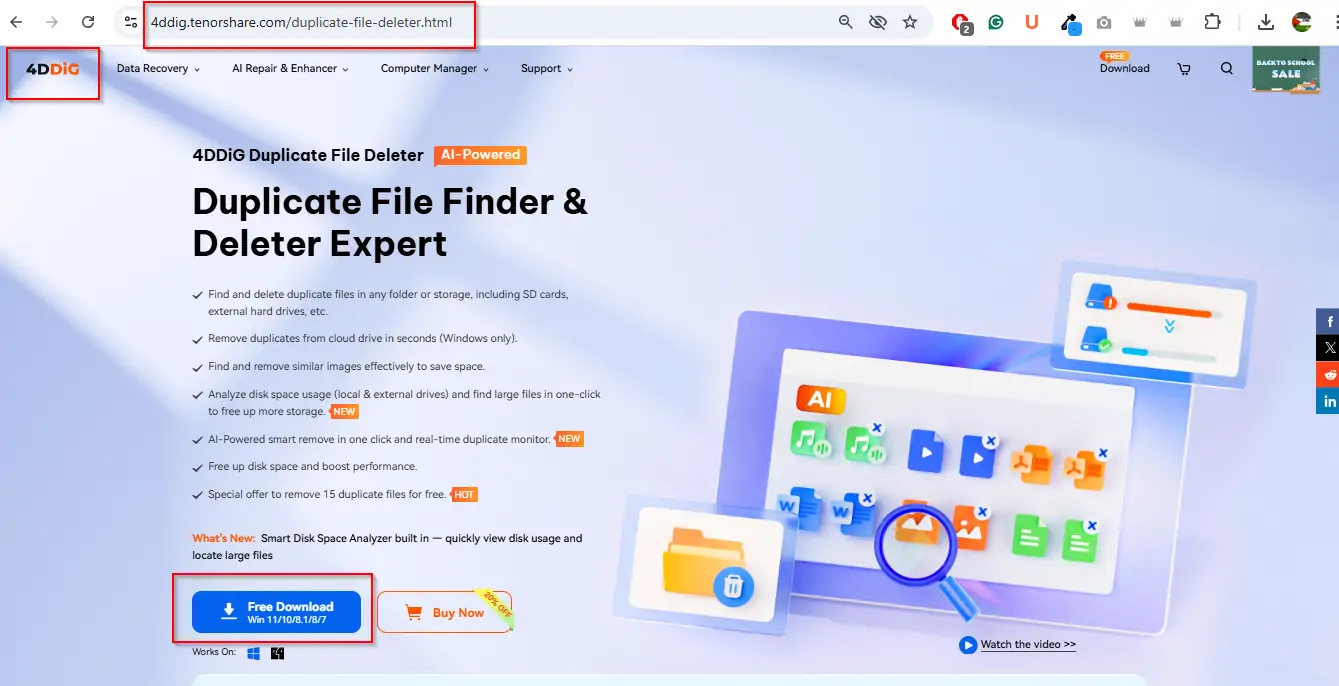
- Go to the 4DDiG Duplicate File Deleter website.
- Download the installer for your OS (Windows or Mac).
- Run the setup file and follow the prompts.
Step 2: Launch the Program
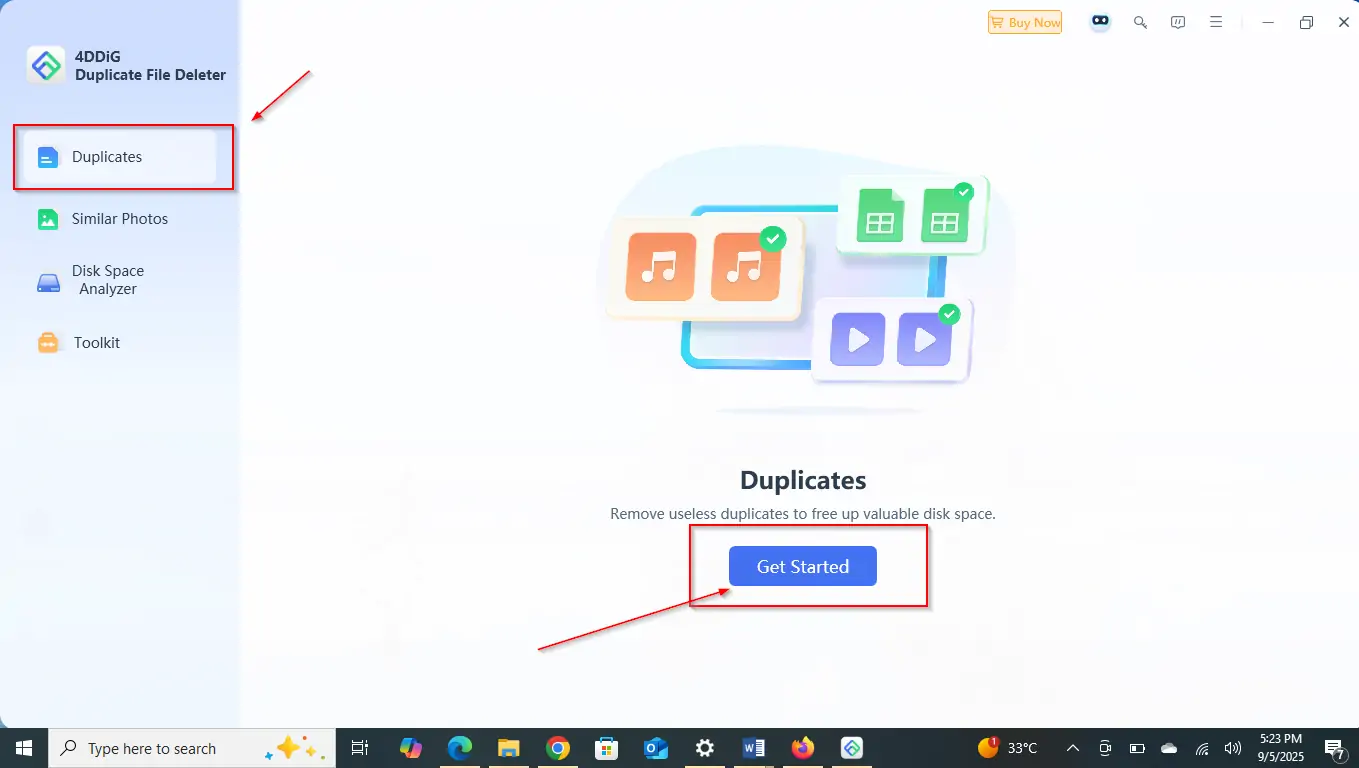
- Open 4DDiG Duplicate File Deleter.
2. On the main screen, click Duplicates→ then select Get Started.
Step 3: Select a Folder or Drive
Choose the folder or drive you want to scan (e.g., Videos, Downloads, or an external hard drive)

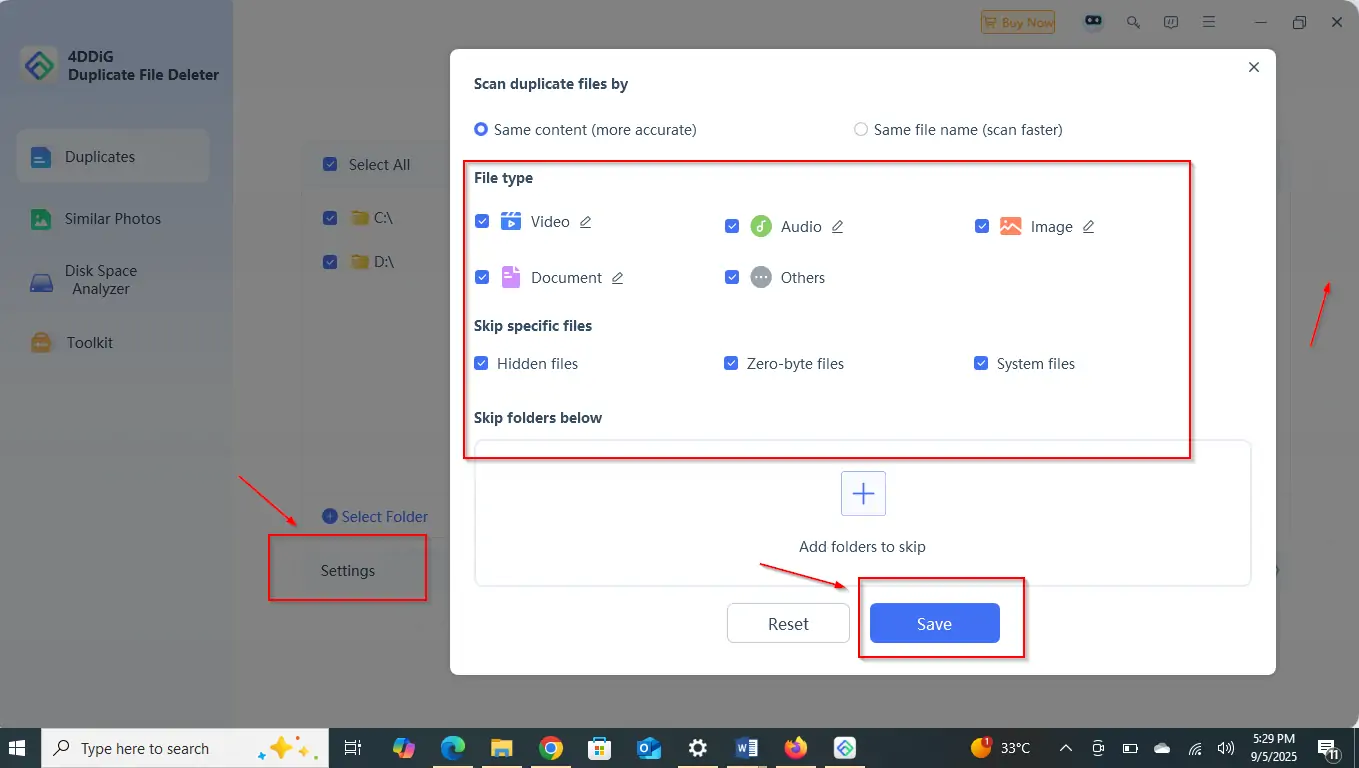
Step 4: Customize Scan Settings (Optional)
- You can narrow down the scan by selecting specific file types or excluding certain folders.
- This is useful if you only want to scan MP4 files.
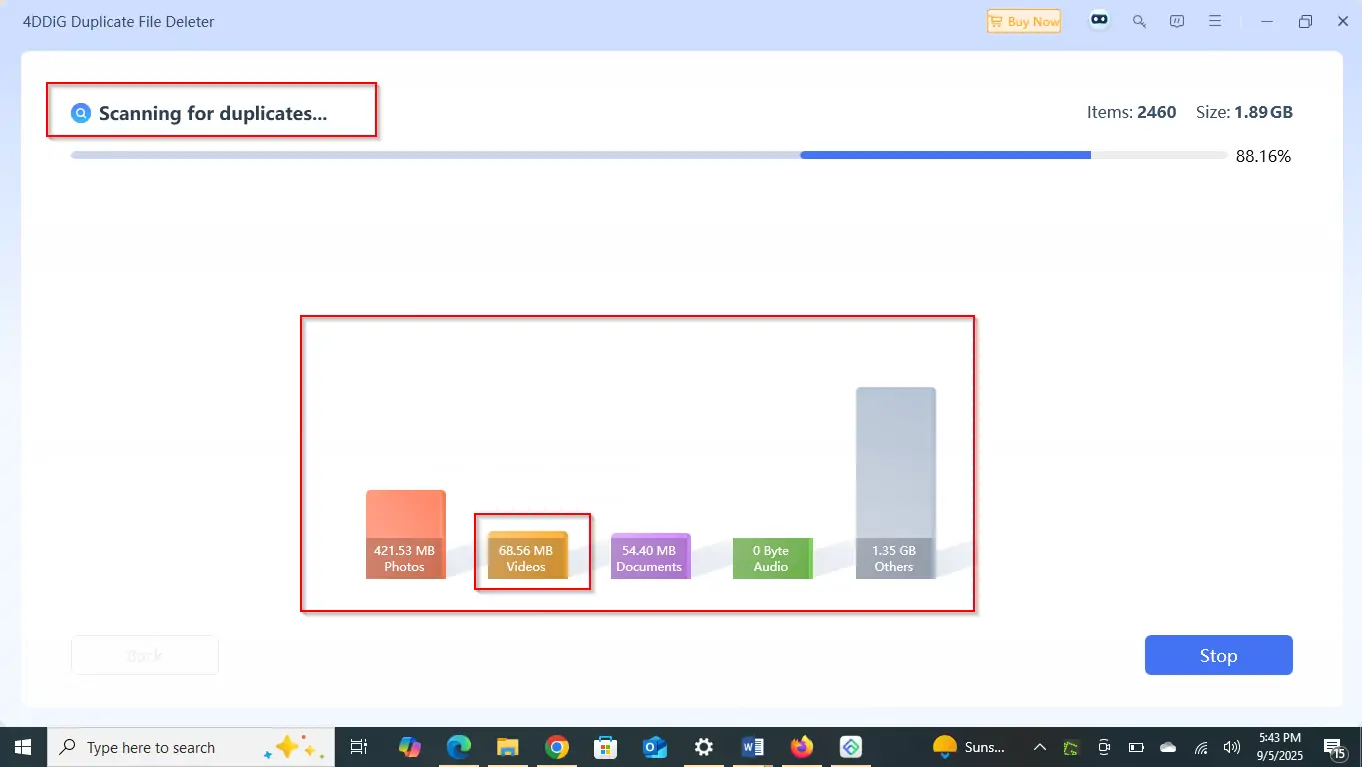
Step 5: Run the Scan
- Click Scan and wait for the program to search for duplicates.
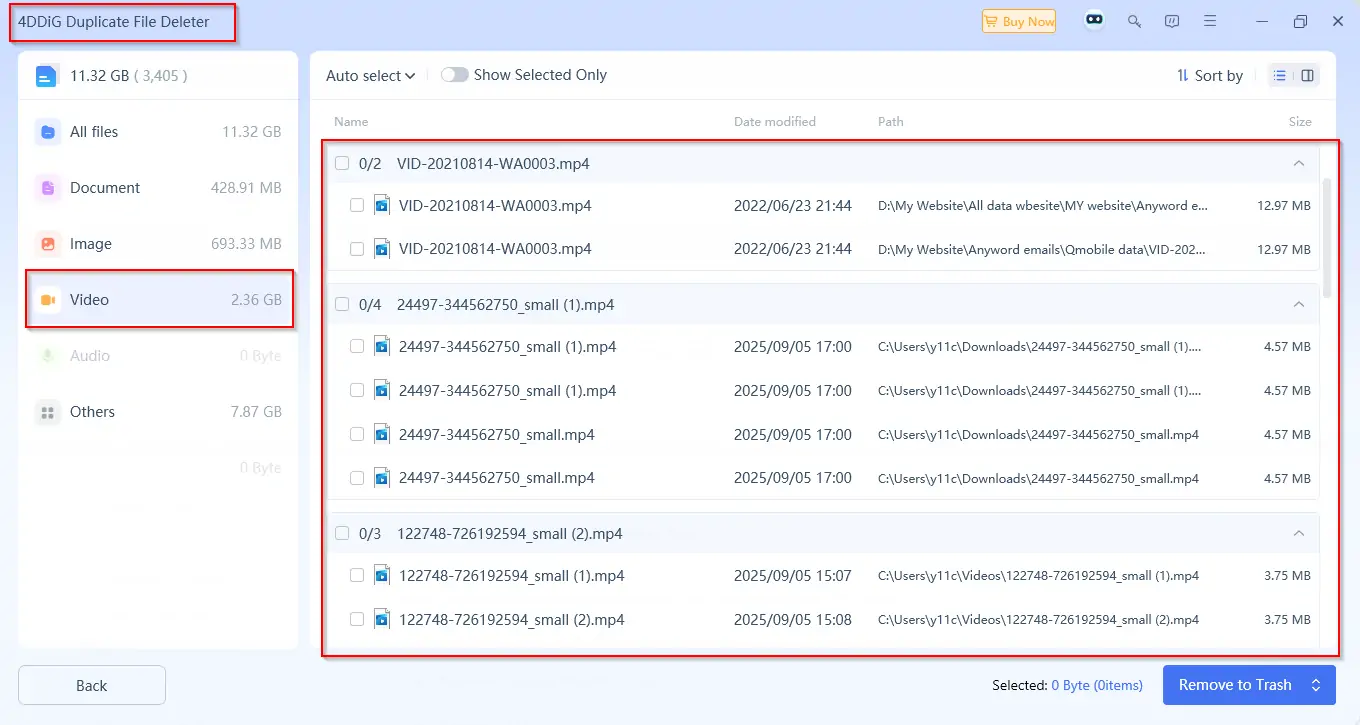
- When done, duplicates are listed by type, size, and location.
Step 6: Remove Duplicates
- Smart Remove allows the software to delete duplicates automatically.
2. Review Duplicates to manually check each file before deleting.
Method 3: Advanced Command Line (Optional)
For users comfortable with advanced tools, the Command Prompt offers a fast way to find and manage duplicate MP4 files without the need for additional software. While effective, this approach requires caution; accidentally removing the wrong files is possible.
Step 1: Open Command Prompt
- Press Win + R on your keyboard.
- Type cmd into the box.
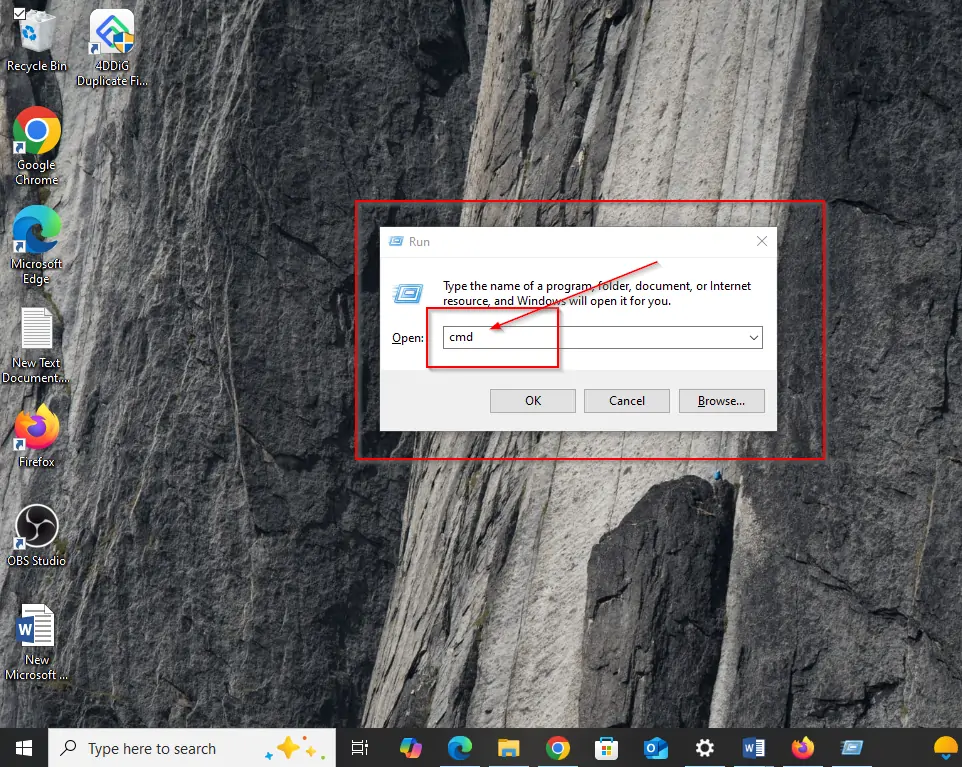
3. Press Enter to open the Command Prompt window.
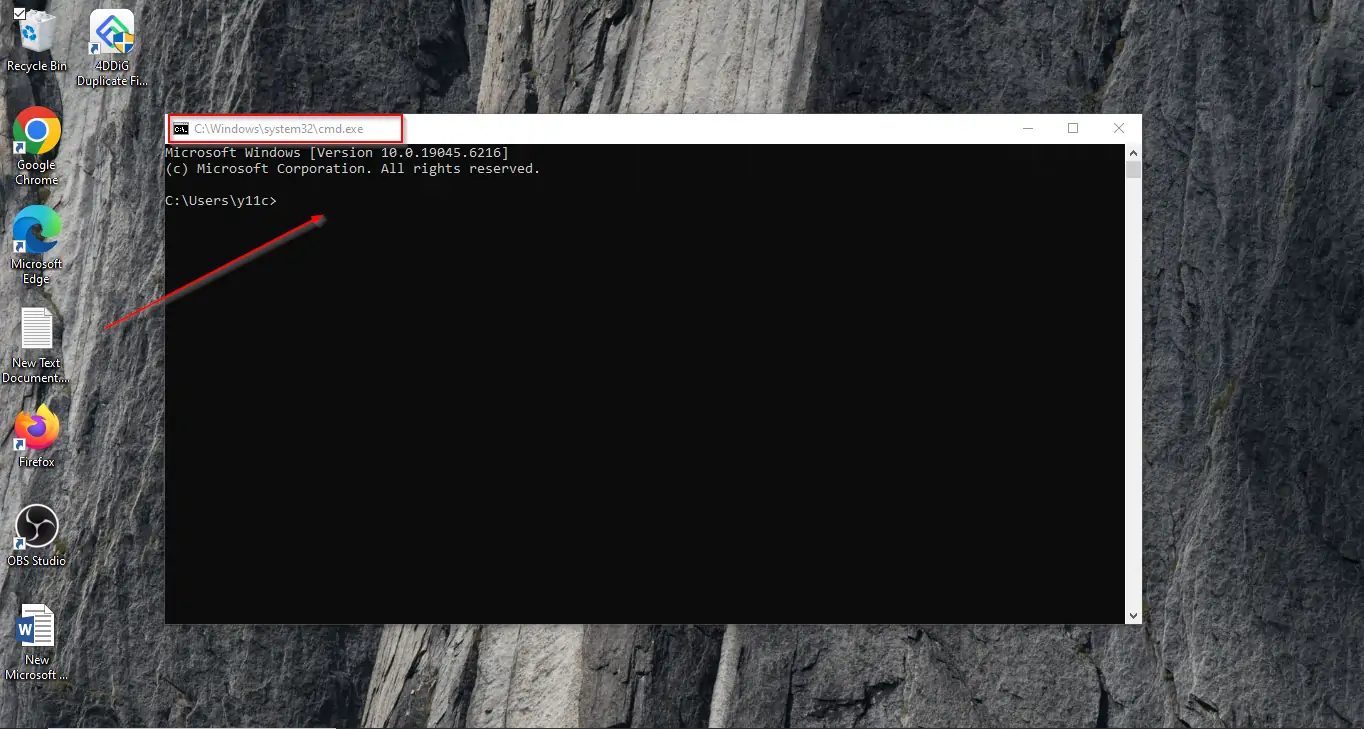
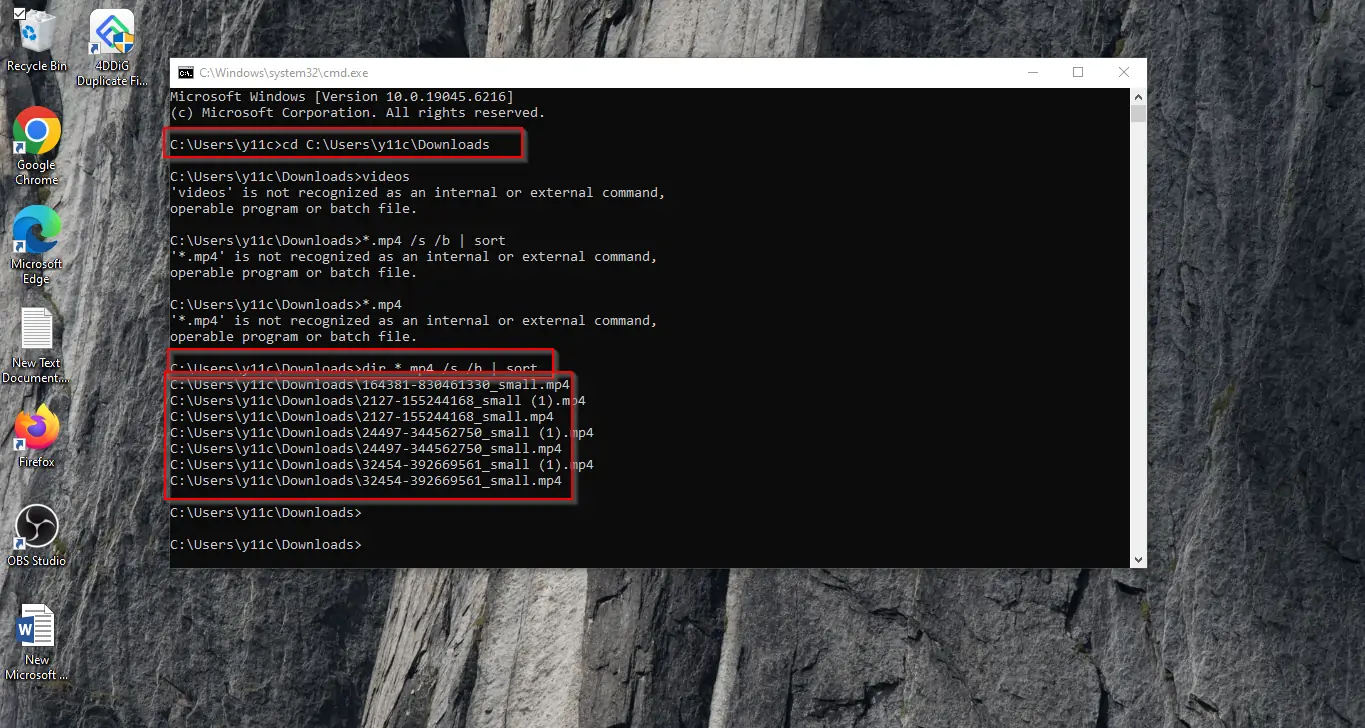
- Type cd followed by the path to your video directory. For example: Cd C: UsersY11cdownloads.
Press Enter. You are now inside the folder where your MP4 files are saved.
Step 3: List All MP4 Files
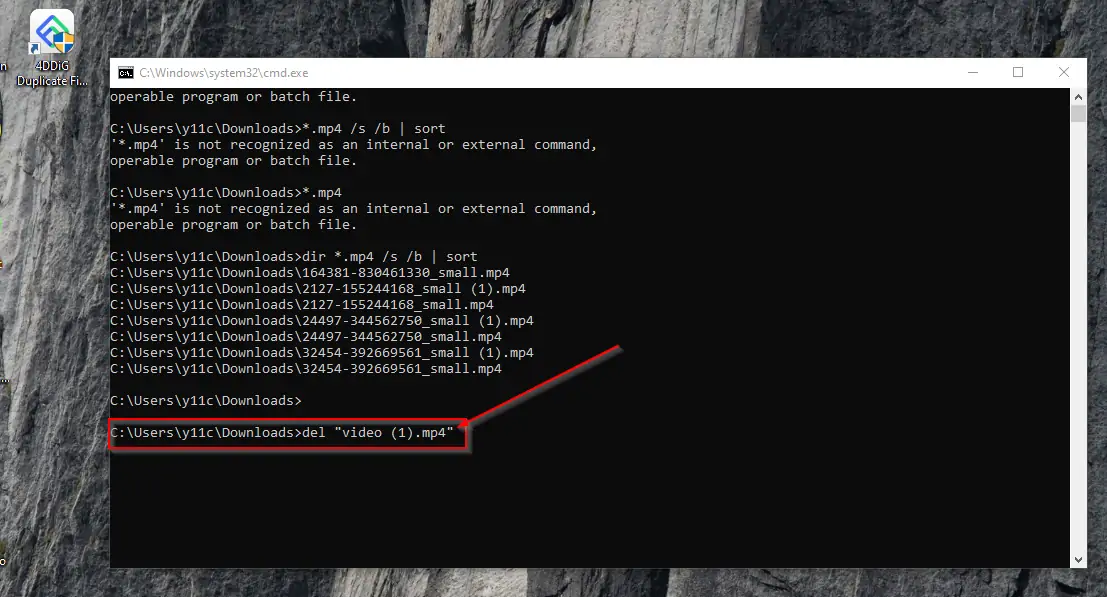
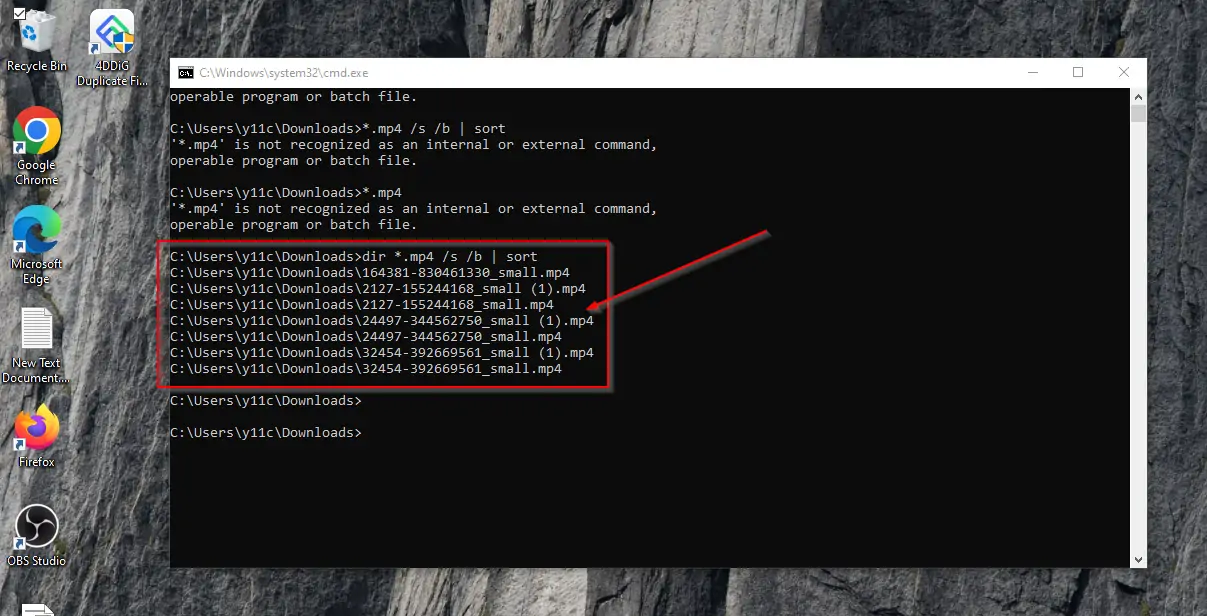
Enter the following command to show every MP4 file in the folder:

dir lists files.
/s /b displays the complete path in a simple list format.
| sort organizes them alphabetically, making duplicates appear next to each other.
Step 5: Delete Duplicates (Optional)
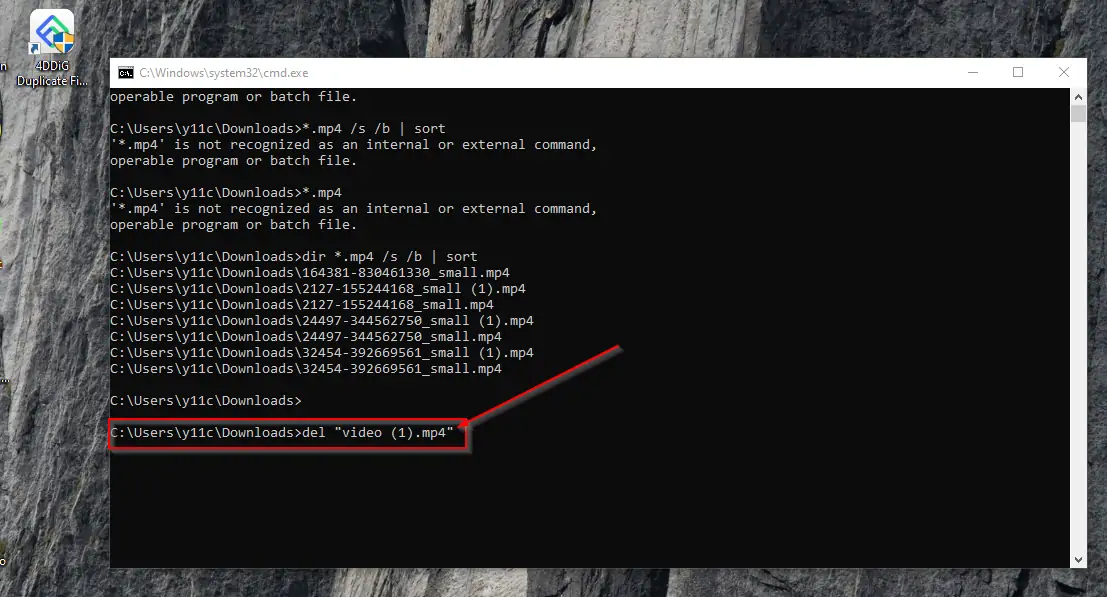
If you’re sure, you can remove duplicates directly through Command Prompt. To do this, type the
following (and repeat for each duplicate you want to delete):
del “video (1).mp4”
How To Prevent Duplicate MP4 Files In A Folder
Preventing their occurrence is as crucial as fixing them. With a few prudently formed habits, you can keep your video library in order:
Organize Your Files
Arrange your MP4s into separate folders for easier sorting and to prevent accidental duplication. You could have categories like Movies, Projects, Tutorials, or Personal.”
Disable Automatic File Duplication
Check settings on cloud saved services, media players, and backup software. Many of these apps have options that automatically create backups or “clash” duplicates. Turning them off can stop MP4 files from duplicating.
Keep Your Software Updated
Update your operating system, media players, and file managers frequently. Software bugs and errors are a common reason for MP4 duplication problems, and updates usually fix them.
Use Duplicate File Prevention Tools
Programs like 4DDiG Duplicate File Deleter, Gemini 2 (for Mac), or dupeGuru can help you identify and manage duplicate MP4 files early, preventing them from occupying your storage space.
Manual Review of Files
Before copying, downloading, or moving MP4s, take a quick look to ensure the file isn’t already present. This small habit can save you from dealing with duplicates later.
FAQs About Duplicate MP4 Files
Q1. Why are my MP4 files duplicating?
MP4 files can sometimes become duplicated due to file syncing issues that prevent them from being transferred, repeated downloads, or errors in media players and backup programs. Interruption of file transfers and ageing software can also cause such errors.
Q2. How do I remove duplicate MP4 videos in a folder?
There are several ways to do this:
- Manually using Explorer (Windows) or Finder (Mac) by sorting and deleting files.
- Using a duplicate file finder such as CCleaner, Duplicate Cleaner Free, Gemini 2, or dupeGuru.
- Runs scripts on Command Prompt (Windows) or Terminal (Mac) if you are at home with command line tools.
Q3. How do I stop Mac from duplicating files?
On a Mac, duplicates occur due to Finder copies, iCloud sync clashes, or media applications. To stop duplication:
- Check your iCloud sync settings and disable “Keep Both duplicates.”* Organize and rename files as soon as you save them.
- Use Gemini 2 to find and remove duplicates automatically.
Q4. Is it safe to delete duplicate MP4 files?
Yes, in most cases it’s safe to delete duplicate MP4 files. But review the files before deleting to make sure you’re not deleting different versions of the same video (e.g., edited vs. raw copy). For safety, move duplicates to a temp folder first before deleting them permanently.
Conclusion
Duplicated MP4 files can be frustrating and annoying, though they are also largely avoidable. Nearly all duplication happens as a result of syncing conflicts in cloud storage, excessive downloading from the Internet, or software errors. The good news is that you can eliminate any existing duplicates and prevent further accumulation through the proper steps.
Here is a very brief recap:
- Locate and delete duplicates manually using File Explorer or Finder.
- Use a third-party tool like CCleaner, Gemini 2, or dupeGuru to save time.
- Limit future duplicates by monitoring sync settings, organizing your files, and keeping your software up to date.
By taking these steps, you will not only reclaim wasted space but also have a much more manageable folder of videos. First, delete the duplicates you’ve created and post the videos in their proper folders; then adhere to your preventative plan.