Blogs
How to Play MP4 on iPhone or iPad
Have you ever tried to download an MP4 file to your iPhone, only to open it and find that nothing is there, and then become frustrated? If yes, then you are not alone. Although MP4 is widely used worldwide, there are situations where Apple devices are unable to play certain MP4 files due to encoding issues. This is confusing because most people believe that all the MP4 files will be automatically compatible.
This article provides an in-depth, step-by-step guide on how to play MP4 files on iPhones or iPads. We will explore native playback, third-party apps, troubleshooting techniques, and even file conversion methods. Moreover, we’ll cover the other formats supported on iOS, so you can avoid compatibility problems in the future. By the end, you’ll know exactly how to watch MP4 on an iPhone without interruptions.
Can an iPhone Play MP4?
Now you might be thinking, “Can an iPhone really play MP4?” So the short answer is Yes, but with limitations. iPhone devices support MP4 playback through the built-in Apple TV app and Photos app, but only when the MP4 file is encoded using the codecs Apple supports.
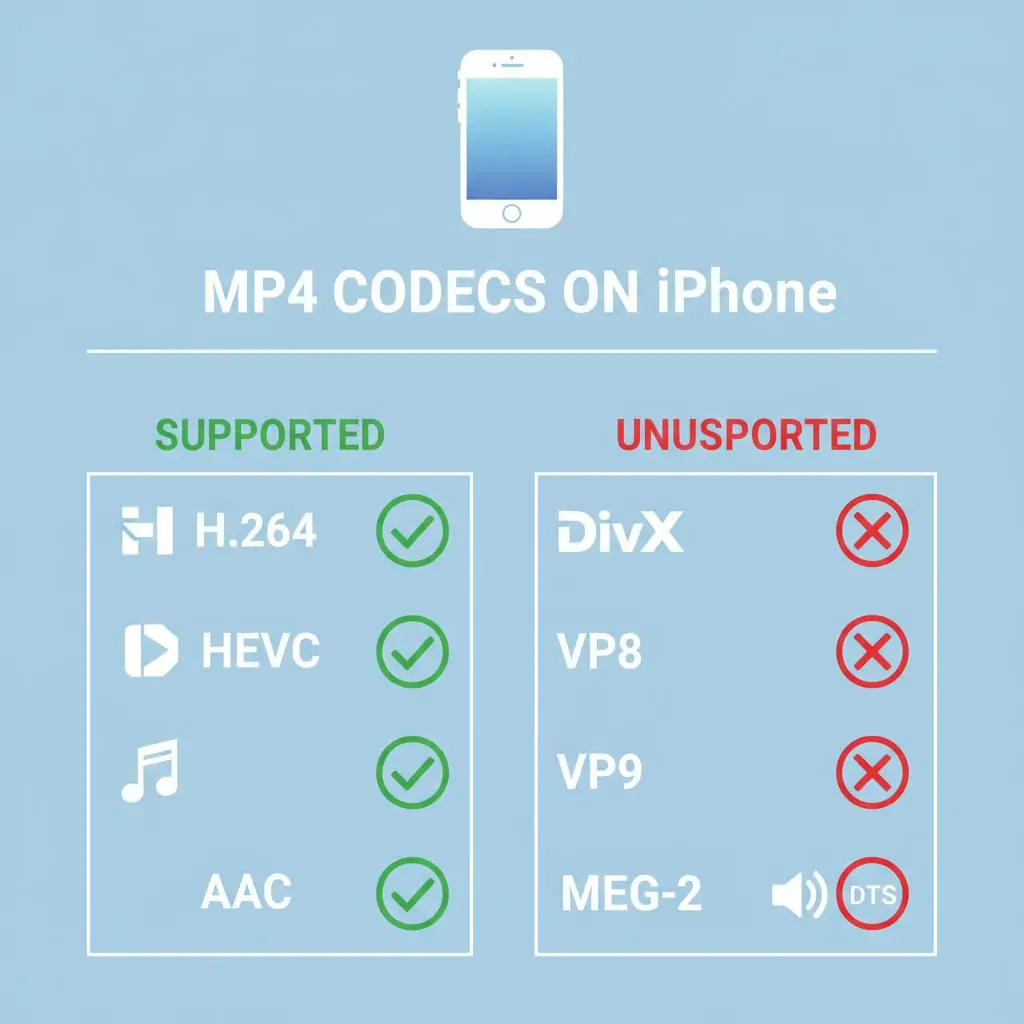
- Supported codecs inside MP4: H.264 (AVC), H.265 (HEVC), and AAC audio.
- Unsupported codecs: DivX, VP8/9, MPEG-2, and some DTS audio tracks.
This explains why you may download two MP4 files and see that one plays seamlessly while the other refuses to open. Both carry the “.mp4” extension, but their internal encoding differs.
Technically, MP4 is a container format. Think of it as a box that can hold different kinds of video and audio streams. If those streams match Apple’s decoding capabilities, playback works. If not, the file won’t open. This is why Apple’s documentation clarifies support for MPEG-4 Part 14 containers but only with H.264, HEVC, and AAC.
So if you are asking, “Will MP4 play on iPhone?” The correct answer is: it depends on how the file was created. Apple focuses on industry-standard and high-efficiency codecs, so the MP4s of camera recordings, screen recordings, and downloads from iTunes tend to play smoothly.
Conversely, MP4s downloaded to the computer, via a torrent service, or by an unknown encoder may not play without modifications.
How to Open MP4 on iPhone or iPad
If you have an MP4 file and want to play it on your iPhone or iPad, there are several reliable methods. Below are the most practical ones.
1. Playing MP4 Directly with Built-In iOS Apps
The simplest way is to use Apple’s native tools.
Steps:
- Transfer the MP4 to your iPhone using AirDrop, iTunes, Finder (on macOS Catalina or later), or iCloud Drive.
- Once transferred, locate the file in the Files or Photos app.
- Tap the file, and playback will begin automatically in the iOS media player.
This method is smooth and secure, as it doesn’t require any additional apps. However, it only works if the MP4 file uses supported codecs. High-resolution 4K MP4 files also require iPhone models with the A9 chip or newer to avoid lag.
2. Using a Third-Party iPhone MP4 Player
Sometimes, when the built-in iOS player fails to play selected MP4 files due to codec limitations, the surest way to proceed is through a third-party media player. These apps circumvent Apple’s restrictions and enable you to play almost any video type without any glitches. The best ones and their utilization are shown below.
VLC for iOS (Free)
Key Features of VLC:
- Extensive codec support: Supports unusual codecs such as MPEG-2, VP9, MKV, and AVI with no conversion.
- Accelerated Hardware: Maximizes performance and minimizes battery consumption when having a lengthy playback duration.
- Several import options: Videos can be uploaded through Wi-Fi, cloud (Google Drive, Dropbox, OneDrive), iTunes, or through local transfer.
- Subtitle and audio controls: It supports a variety of subtitle formats and file formats, as well as external subtitles and audio tracks.
- Gesture controls: Swipe to control brightness, volume, and seek in the video.
Step-by-Step Guide to Using VLC on iPhone:
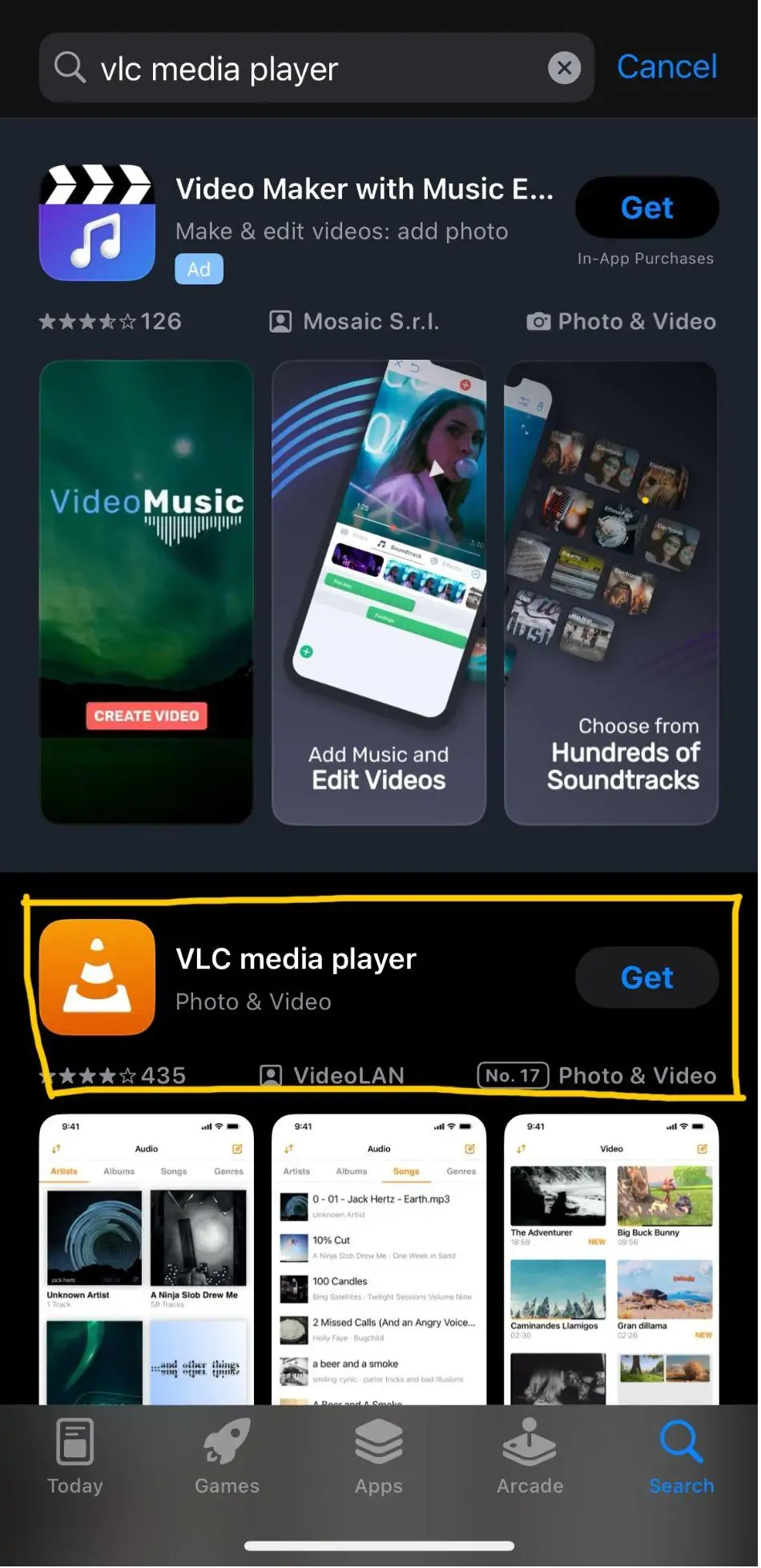
Step 1: Download VLC from the App Store
- Open the App Store on your iPhone.
- Search for VLC for Mobile and tap Get to install.
Step 2. Open VLC and Access File Options
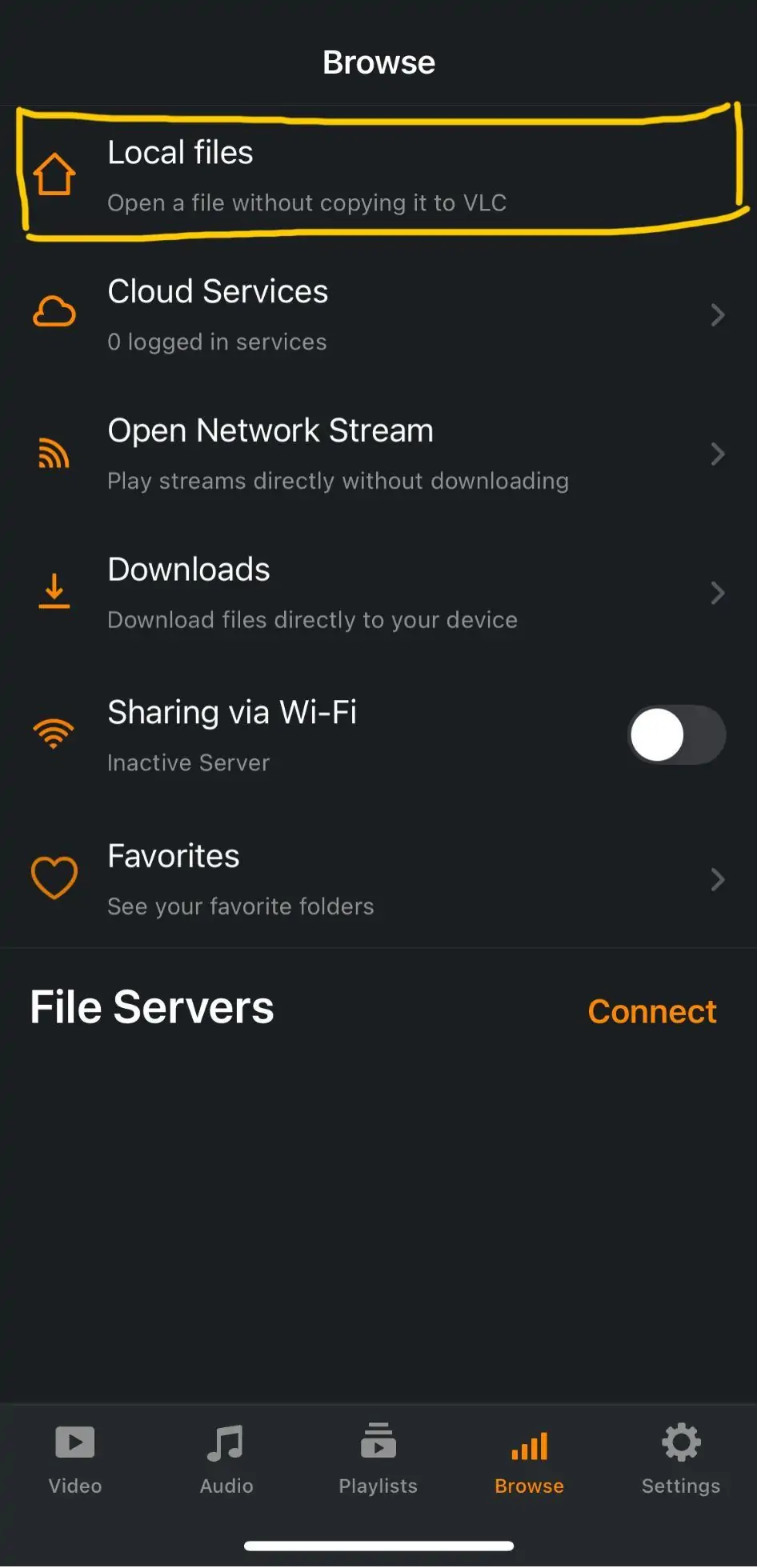
- Launch VLC after installation.
- On the main screen, tap either Files (to browse local files) or Network (to stream or upload).
Step 3. Import Your MP4 File
VLC offers several ways to bring videos into the app:
- Wi-Fi Upload: Enable sharing via Wi-Fi in VLC → enter the IP address shown into your computer browser → drag and drop MP4 files.
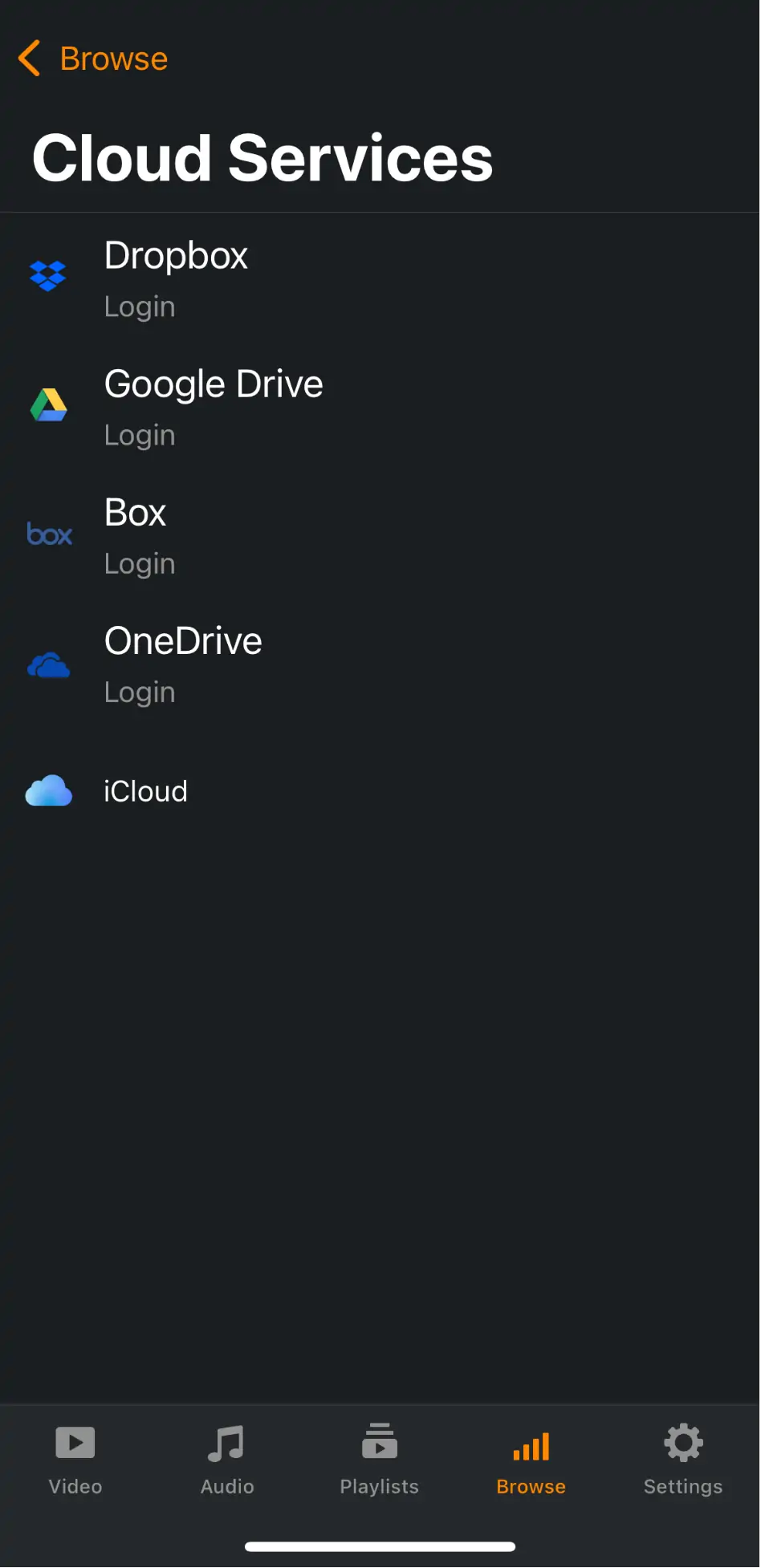
- Cloud Storage: Connect your Google Drive, Dropbox, or OneDrive account and directly import files.
- Local Transfer: Move videos using iTunes or copy them into VLC from the iPhone’s Files app.
Step 4. Play Your Video Instantly
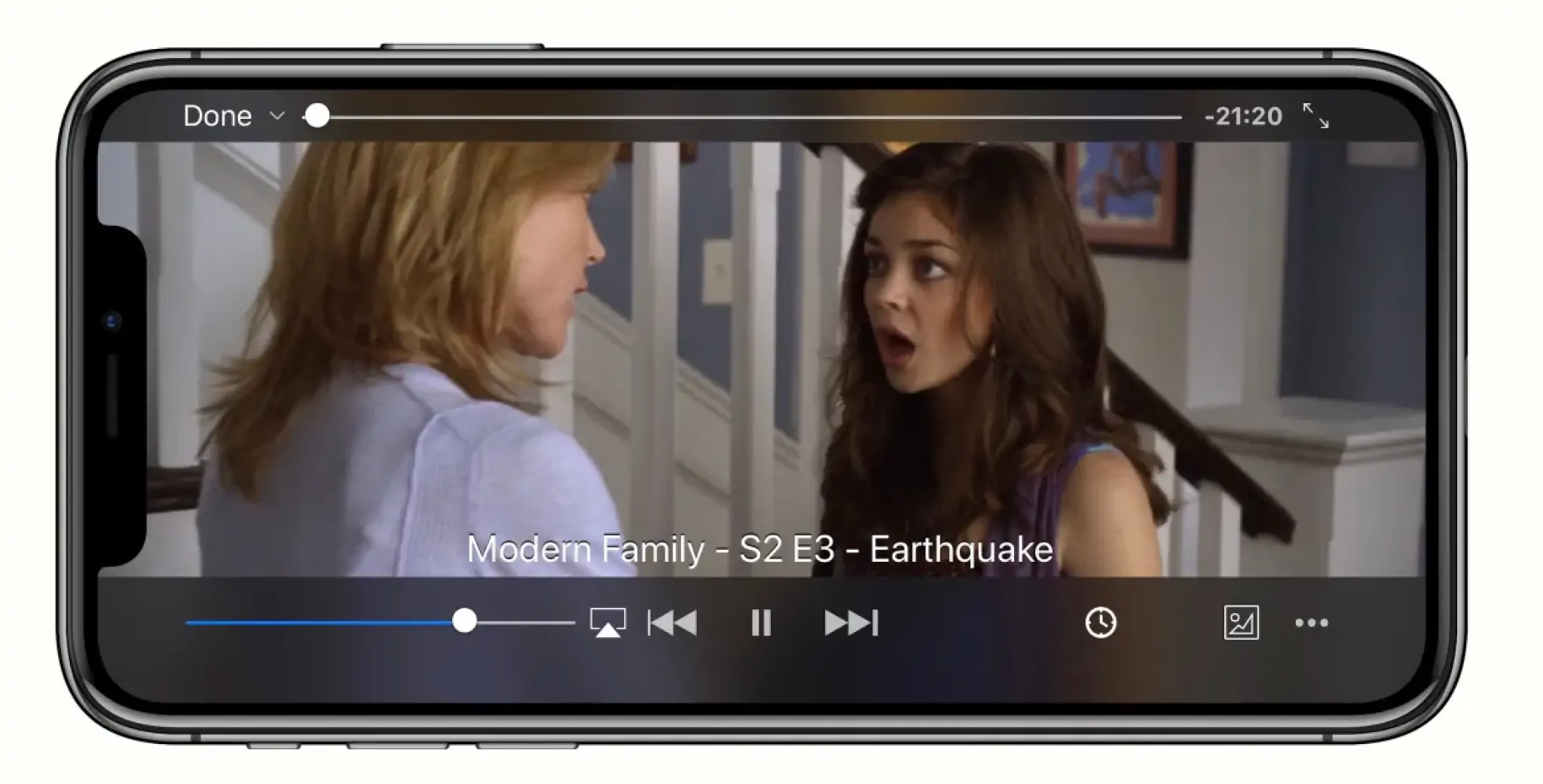
- Once the MP4 file appears in VLC’s library, tap on it.
- Playback starts immediately, regardless of the codec inside the MP4 container.
- Use gestures to adjust brightness, volume, or seek while watching.
3. MP4 streaming of Cloud Services
Streaming is a practical option when you don’t want to store large video files remotely on your device. Instead of consuming valuable storage, you can access your media from the cloud whenever needed. Follow these steps:
Step 1 – Upload Your MP4 File
Upload your MP4 video to cloud storage services such as Google Drive, Dropbox, iCloud, or OneDrive. This ensures your file is safe, backed up, and accessible on any device. After storage, it is easy to transfer it to your favorite iPhone MP4 player without using cables or other complicated transfers.
Step 2 – Install the Cloud App on Your iPhone
Install the cloud application (Google Drive, Dropbox, or iCloud Drive) in the App Store. Installation: After installation, proceed with your account credentials. This will synchronize all the files you uploaded, allowing your MP4 videos to be immediately imported into the media player of your choice on your iPhone.
Step 3 – Locate and Open the MP4 File
Go to your cloud application and locate the uploaded MP4. In the case of the default iPhone player, tap the Open With button and select a third-party player, such as VLC media player or Infuse. All codecs are managed without any issues in these apps, allowing you to enjoy playback without conversion or storage problems.
How to Solve MP4 Not Playing on iPhone
Sometimes, even after applying the methods mentioned above, you will experience MP4s that cannot be played.
Common issues include:
- Video codec (e.g., DivX) not supported.
- Audio stream incompatible (e.g., AC3 or DTS).
- Corruption of the files in transit.
- Stutter caused by extremely large file sizes.
The most professional solution is to convert it into an iPhone-compatible MP4.
Fix Using AhaConvert MP4 Converter
AhaConvert is a reputable online video converter site that guarantees MP4 compatibility with iOS devices. It automatically converts the video to H.264 and AAC, which are fully supported on iPhone.
Steps to Convert:
1. Open the Converter Website
Open AhaConvert in Safari (iPhone) or in a desktop browser. This online tool lets you re-encode MP4 files into a more compatible file format.
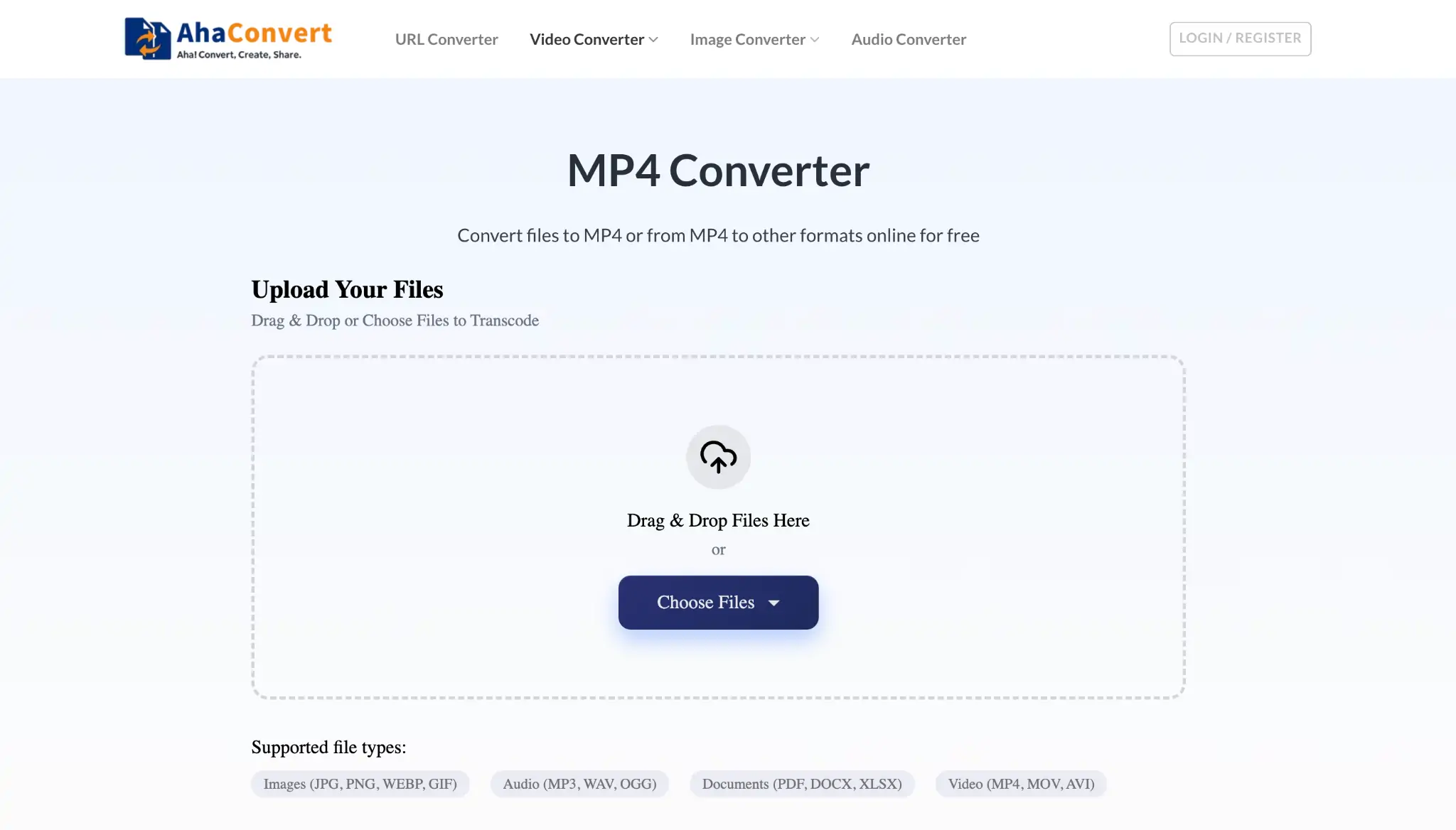
2. Upload the Problematic MP4
Click the Upload button and choose the MP4 file that is not playing right on your device. The file will be ready for conversion.
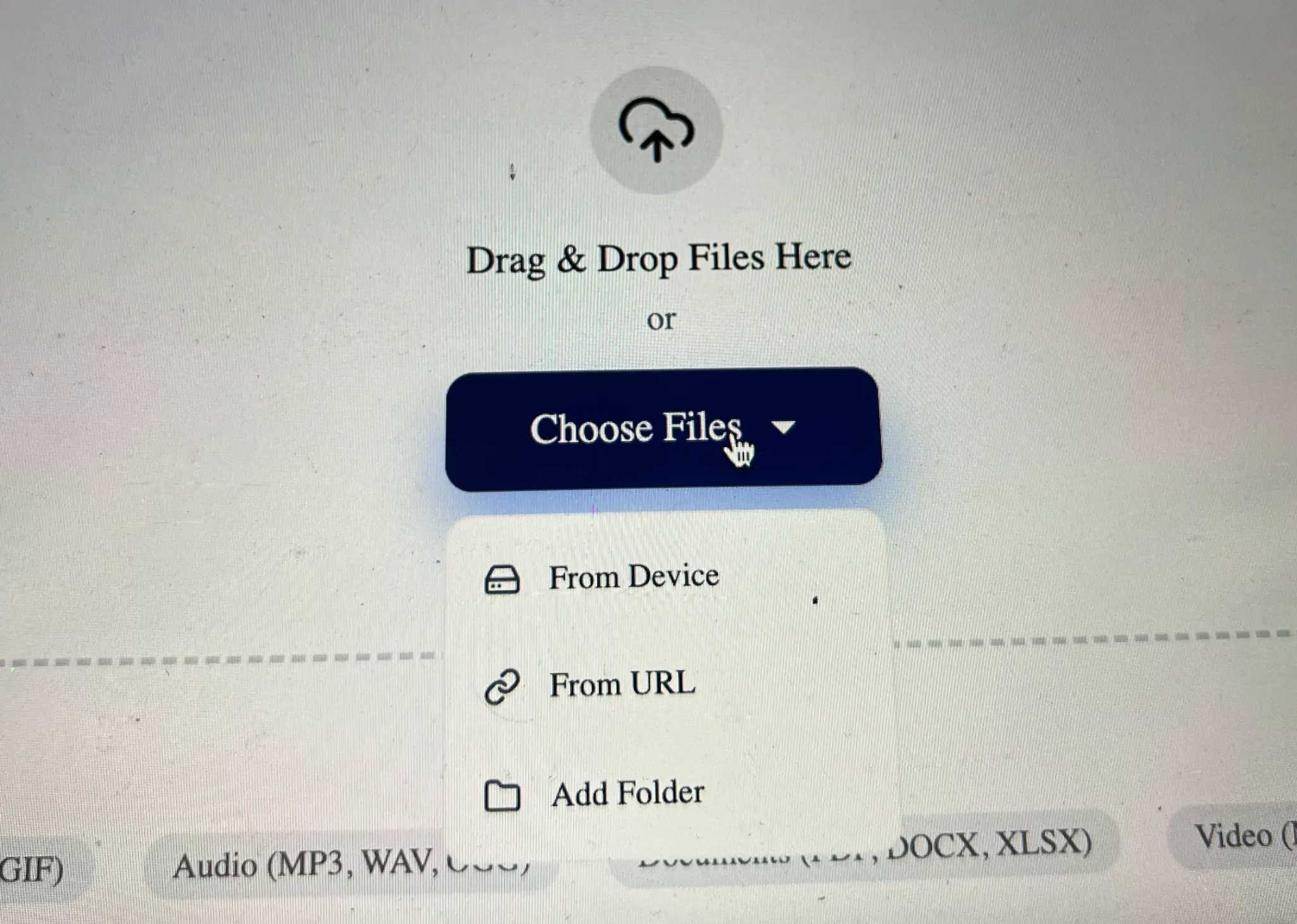
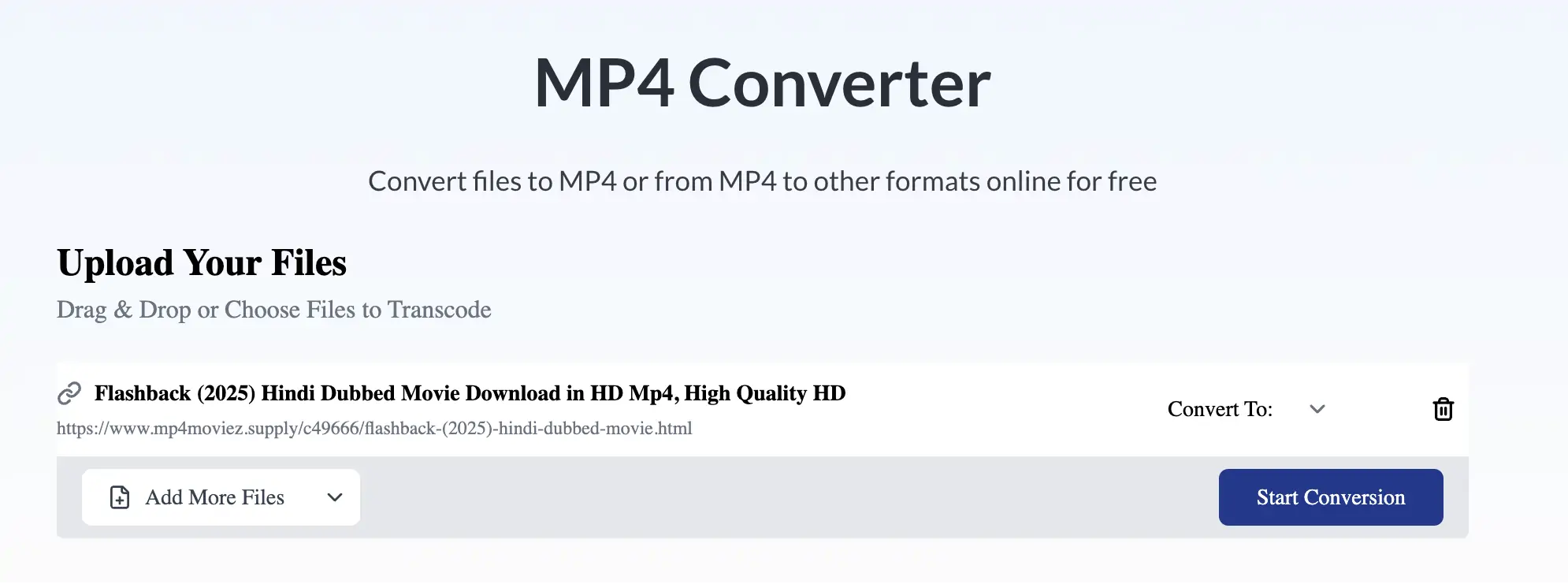
Note: You can also add the URL that you are trying to play on your iPhone.
3. Select the Correct Output Format
Under output select MP4 (H.264 + AAC). This combination ensures optimal compatibility with iOS devices, while maintaining high-quality video and audio.
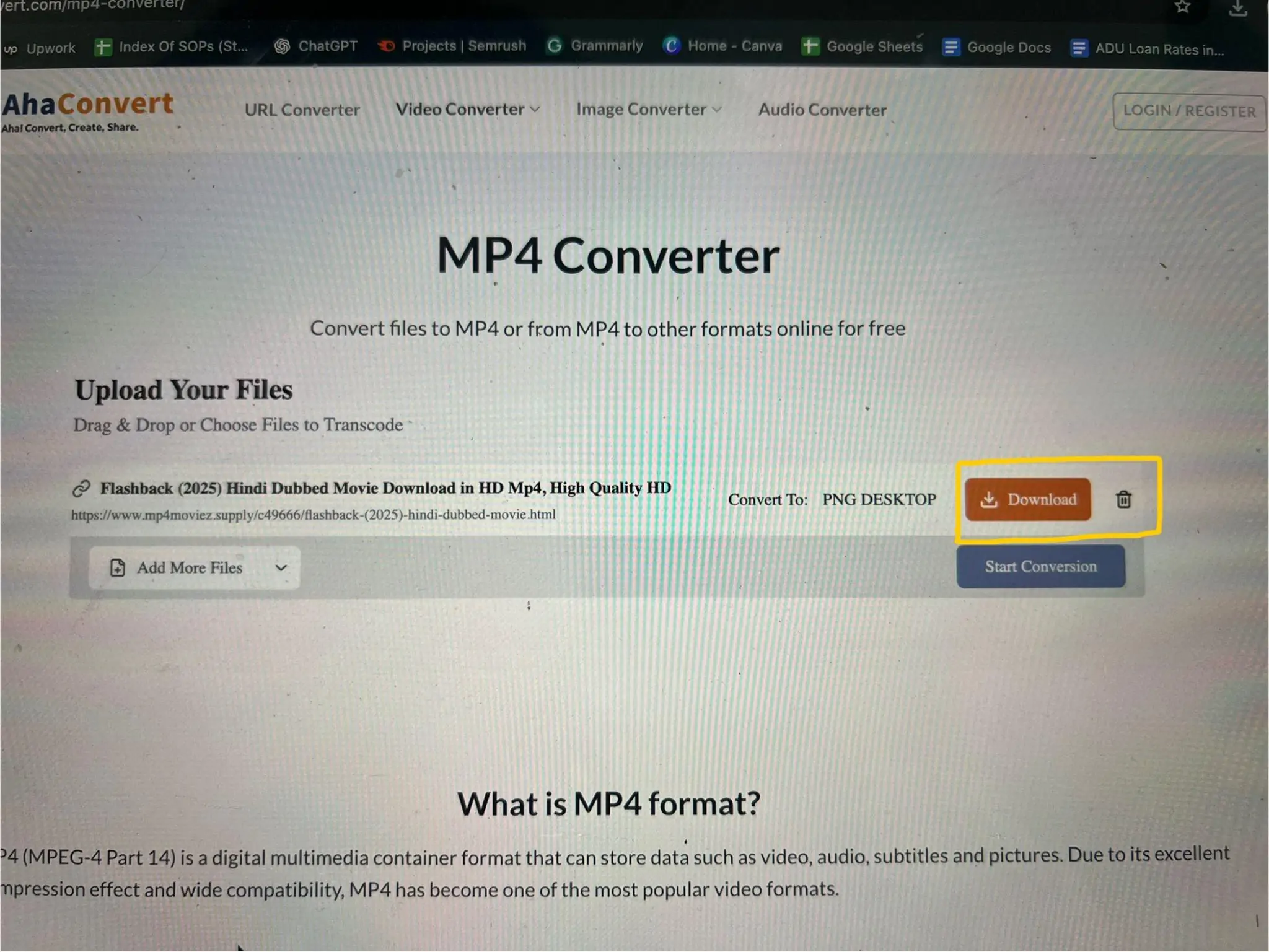
4. Download and Transfer the New File
Once the conversion is complete, download the new MP4 file. You can then use AirDrop to send it to your iPhone for immediate access, or save it to a cloud service that can be used for streaming and viewing later.
What Other Video Formats Does iPhone Support?
When transferring or downloading videos occasionally, it’s worth noting that iPhones are designed to support popular formats. Apple also streamlines its devices to ensure they play back smoothly, utilize storage efficiently, and perform optimally in all applications. The major video formats that are supported as a native feature of iPhones to play back the video without any trouble are given below:
Native Support
- MP4 (H.264/HEVC + AAC): Most common and efficient.
- MOV: Apple’s proprietary format, often used in Final Cut Pro or iMovie.
- M4V: Similar to MP4, used for iTunes Store purchases.
- HEVC (H.265): Excellent compression, supported on devices running iOS 11 or later.
Formats Not Supported by Default
- MKV, AVI, WMV, FLV: Popular online, but not playable in the default player.
- WebM/VP9: Used by YouTube, not natively supported.
For these, you either need a universal iPhone MP4 player like VLC or must convert them to MP4 using AhaConvert.
Why Apple Restricts Formats
Native support is restricted in Apple to allow battery efficiency, hardware acceleration, and DRM security. iOS can decode video much more quickly and use less energy by using a limited number of codecs. This is important in mobile devices with a small battery capacity. Additionally, Apple places special emphasis on FairPlay DRM in formats like M4V, which enhances the protection of licensed videos.
Tips for Smooth MP4 Playback on iPhone
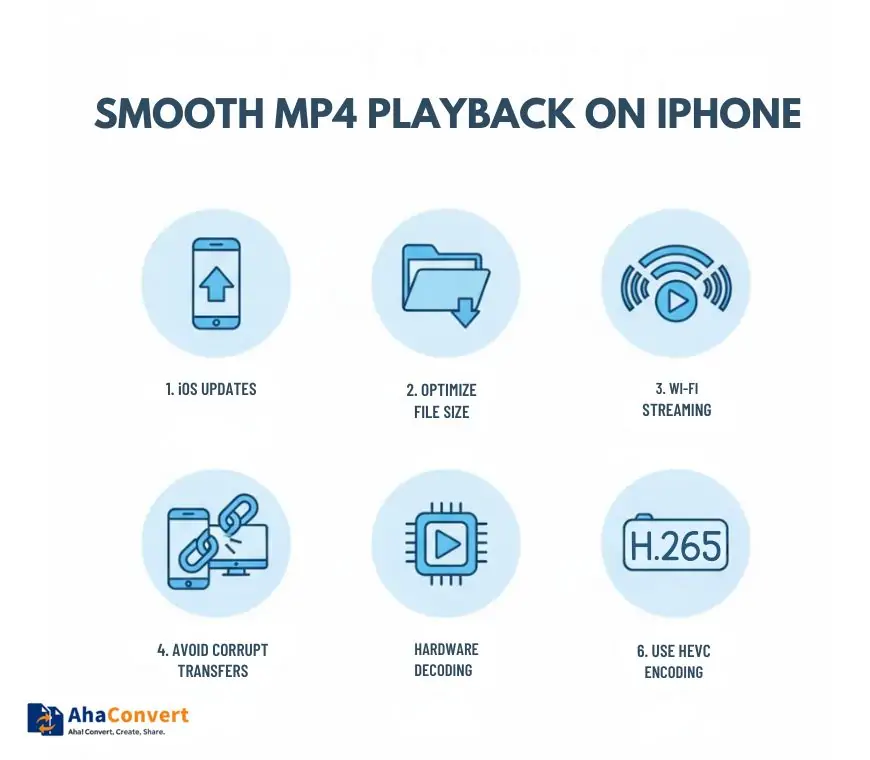
- Keep iOS Updated: Newer versions improve codec compatibility and overall video performance.
- Optimize File Size: Use tools like HandBrake or AhaConvert to compress large MP4s without losing quality.
- Use Fast Wi-Fi for Streaming: A strong connection prevents buffering when playing videos from the cloud.
- Avoid Corrupt Transfers: Transfer files with AirDrop or official Apple cables instead of third-party tools.
- Enable Hardware Decoding: Turn this on in supported apps for smoother playback and better battery use.
- Prefer HEVC Format: When creating MP4s, encode in H.265 (HEVC) to save storage while keeping high quality.
Take Control of MP4 Playback on iPhone with AhaConvert Today!
Struggling with MP4 files that won’t play on your iPhone can be frustrating. You might transfer videos from your laptop, only to find them unsupported, or download a movie that refuses to open in the default player. These interruptions waste time, break your workflow, and turn what should be a simple viewing experience into a technical headache.
The solution is simple and effective. By using trusted apps like VLC or Infuse, you can instantly open a wide range of MP4 formats without worrying about compatibility. For a permanent fix, AhaConvert lets you convert unsupported MP4s into iPhone-ready formats in just a few clicks. Say goodbye to playback errors and enjoy seamless video viewing on your iPhone or iPad anytime, anywhere.
Frequently Asked Questions
Does an iPhone play MP4 files directly?
There are several ways to play MP4 files on an iPhone, provided the video contains Apple-supported codecs, such as H.264 or MPEG-4, and features AAC audio. The MP4 file could not be opened if it is coded with other formats, such as DivX or AC3. In this regard, to play the file, it is necessary to either convert it or install a third-party iPhone MP4 player application.
Which is the best free iPhone MP4 player?
VLC 4 iOS is the most trusted among many other free iPhone MP4 players. It supports almost every codec, features subtitle support, and can also stream directly from the network. Other strong alternatives include Infuse and KMPlayer, which offer smooth playback. These apps provide more flexibility compared to Apple’s built-in Photos or TV apps for MP4.
Is it possible to watch a 4K MP4 video on an iPhone?
iPhones today will play 4K MP4 files, as long as the file is coded using H.264 or HEVC. Phones such as the iPhone 12 and above can easily support 4K without any complications, but older phones might not be able to meet expectations. In this situation, it is best to downscale or convert the file to play it back smoothly.
What is the best way of transferring MP4 files to an iPhone?
MP4 can be transferred to an iPhone in several ways. AirDrop is fast and wireless, whereas video transfer can be made via iTunes or Finder. iCloud Drive can be used to transfer videos between devices over the cloud. There are also apps such as VLC that offer Wi-Fi upload on a computer. Once transferred, you can play the MP4 either in Photos or any other media player.