Blogs
How to Play an OGG File
To play an OGG file, use a VLC player on both desktop and mobile. You can also open the OGG file on a Chrome, Firefox, or Opera browser to play the OGG media without using third-party programs.
Alternatively, use a free online converter to turn the OGG file into audio formats like MP3, WAV, AAC, or video formats like MP4, MOV, and AVI.
With many different ways to play an OGG file, we will focus on using the VLC player, as it recognizes the OGG file format. Moreover, VLC comes with Vorbis and Theora codecs, which are used within the OGG container.
In this detailed, step-by-step guide, I’ll show you how to use VLC to play an OGG file. Additionally, we’ll cover various alternatives to help you choose the best options for viewing OGG files.
What is an OGG File?
An OGG file is an open-source multimedia file format developed by the Xiph.Org Foundation in 2003. This file format can store different types of media, including:
– Audio;
– Video;
– Text;
– Metadata like music title, artist, genre, and track number.
These different types of media have specific compression methods. Vorbis, FLAC, and OggPCM are used on audio files, while Theora is used for video. This means that an OGG file can contain audio or video data that was compressed with Vorbis, FLAC, OggPCM, or Theora and saved in an OGG container.
OGG files can use different extensions depending on their content: .ogg for standard audio, .oga for audio-only content, .ogv for video, and .ogx for files that contain a mix of audio, video, or subtitles.
Since OGG is open-source, it’s mainly used for streaming and local playback. This is because it offers a high-quality, royalty-free alternative to other audio formats, such as MP3. Unlike other file types, OGG can be compressed without significant loss to quality.
OGG File Compatibility
OGG files are compatible with various media players, including:
– VideoLAN VLC Player;
– the discontinued Microsoft Groove Music;
– Foobar;
– Winamp;
– MPlayer;
– Adobe Audition program;
– the new Windows Media Player;
– Olimsoft OPlayer Lite for iPhone and iPad.
To this end, you can use a variety of media players and audio programs to play OGG files. These can include Windows Media Player, VLC, Adobe Audition, Miro, Xio Audio Player, and online options through Google Drive.
On a Mac, you can use Roxio Toast and Elmedia Player to open OGG files. If you have QuickTime, you can install the Xiph Component to make it compatible with OGG. Meanwhile, if you’re on Linux, you can stick with VLC or go with Miro, Zinf, Totem, or Amarok.
Since VLC is the most viable option for playing OGG files, let’s go about it step-by-step in the next section.
How to Play an OGG File Using the VLC Media Player
When you want to play an OGG file on Windows or Mac, VLC is your best option.
VLC is a free and open-source cross-platform media software. It is compatible with both desktop operating systems and mobile platforms like Android, iOS, and iPadOS. You can download it from the Microsoft Store, Google Play, and Apple Store.
As I mentioned earlier, VLC supports playing OGG files natively, as it includes the Vorbis and Theora codecs that OGG files utilize. Thus, you do not need to find or calibrate any plugins to open media files.
To play an OGG file using VLC Media Player on Windows and Mac:
- Install the VLC media player on your computer by visiting the VLC download page.
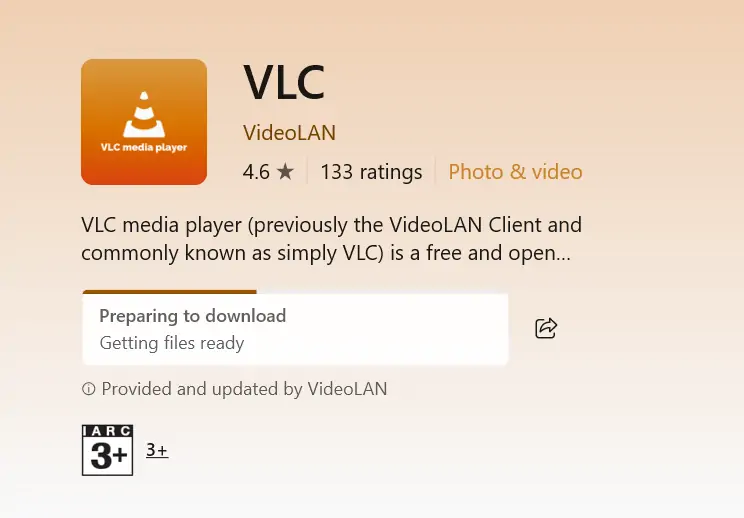
2. Once installed, find the OGG file you want and right-click on it.
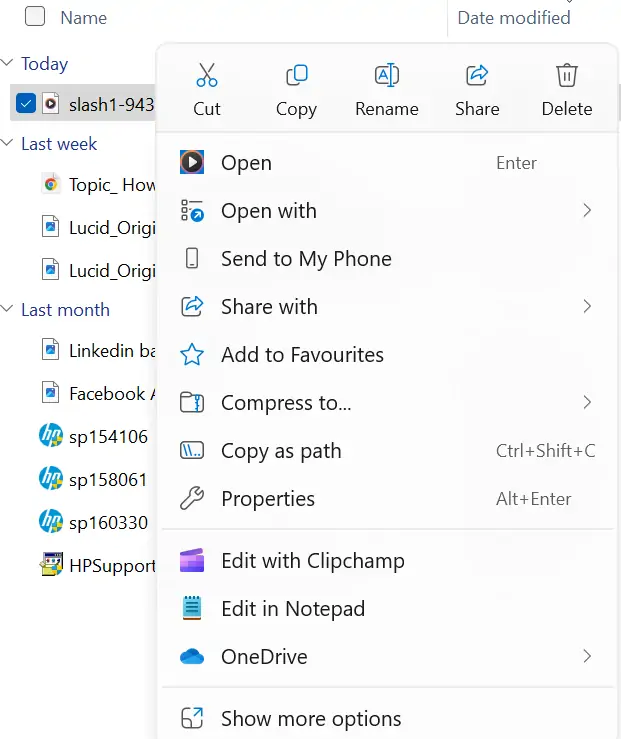
3. Choose Play with VLC Media Player or Open with, select VLC Media Player.
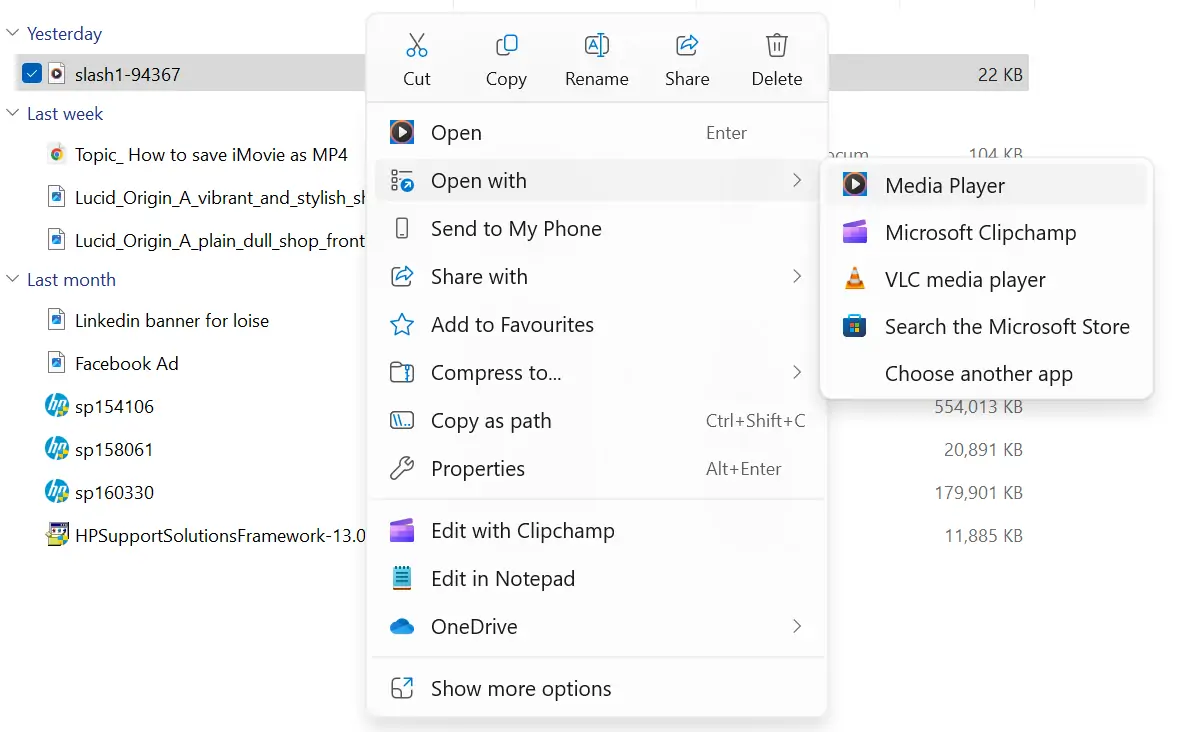
4. The OGG file will play without an issue on the VLC media player.
Alternatively,
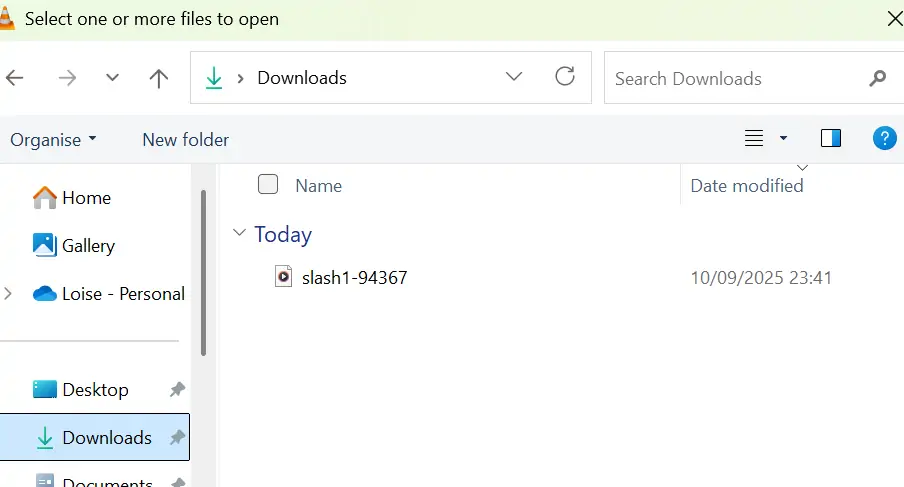
- Open the VLC Media Player and click on Media in the menu bar.
- Click Open File.
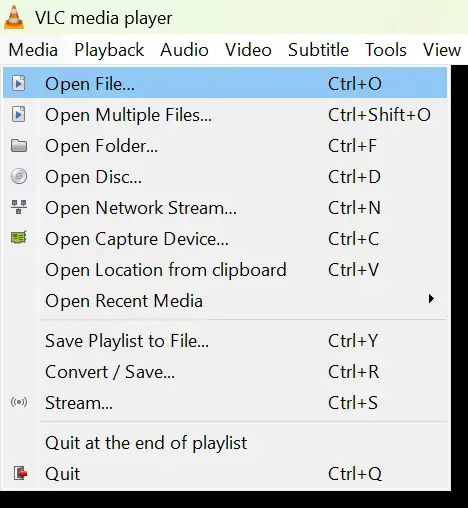
3. Choose the OGG media file you want from your media library and select Open. The file will play without any problems.
How to Play an OGG File on Windows Media Player
Windows Media Player is another alternative for opening files with the .ogg format. However, you need to install the Web Media Extension Package. This component provides support for open-source media formats, including OGG containers and Theora and Vorbis codecs, to Windows apps and the Microsoft Edge browser.
To install the Web Media Extension Package:
Go to the Microsoft Store and search for Web Media Extension Package. Click “Get” and wait for it to install. When the installation is complete, your Windows System will have the necessary codecs required for OGG files to open on Windows Media Player.
To play OGG files on Windows Media Player:
- Open the OGG file location and right-click on it.
- Choose the Windows Media Player option. The OGG player should play without issues.
Play an OGG File On Browser
The easiest way to play OGG files is directly in your browser. Again, OGG is open-source. Thus, it’s accessible to developers who are looking to avoid fees for proprietary file formats like MP3 and H.265.
Additionally, the HTML5 specification, which specifies the structure and presentation of the web, initially recommended OGG formats for embedding multimedia in web pages. Therefore, browsers widely adopted the OGG format.
Now, you will find that many browsers will play OGG files in a heartbeat.
To view OGG files on a browser:
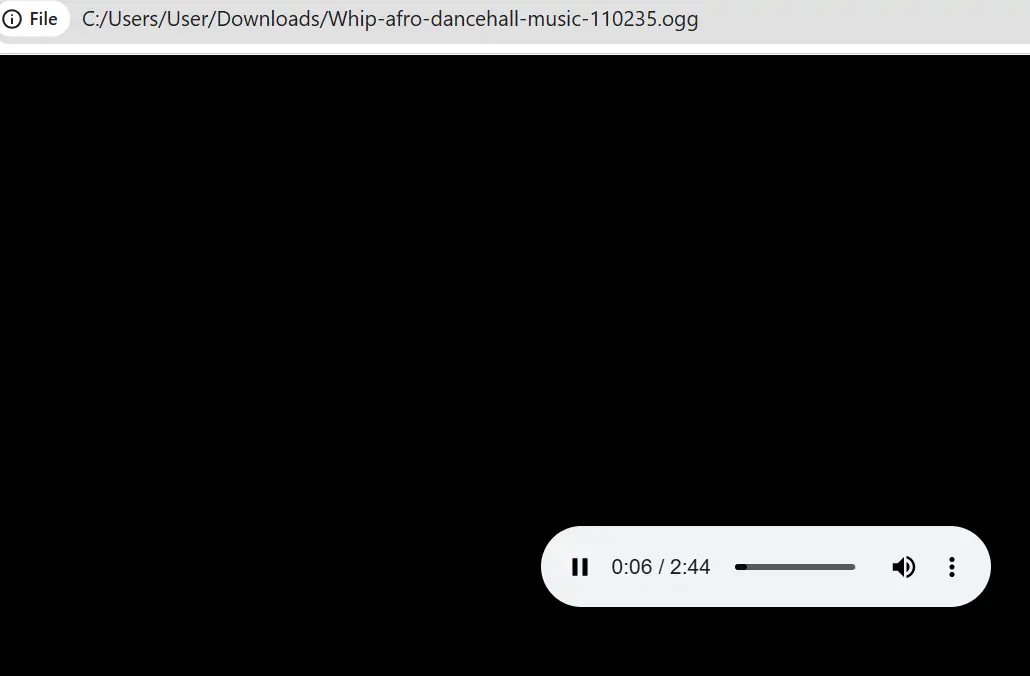
Drag the file from your desktop’s library to a new tab on your browser. The file will play automatically.
Use Google Drive to Listen to OGG Files
Google Drive is built around the Chrome browser technology. This means it relies on the Chrome browser’s capabilities. Since the Chrome browser supports OGG files, it goes without saying that the Google Drive is compatible with OGG media.
Some of the advantages of using Google Drive to play OGG files include:
– It’s instant. You don’t need to install file extensions.
– It offers browser access from desktop and mobile.
– You will stream high-quality audio.
– It provides convenient file management and sharing with loved ones and social media.
To use Google Drive for playing OGG Files:
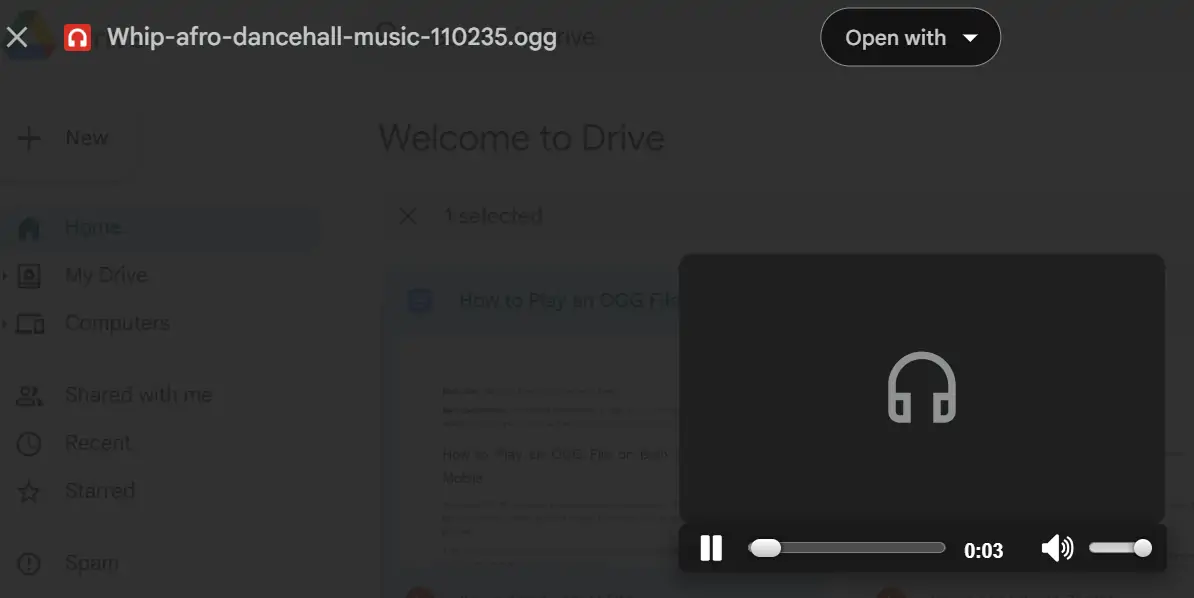
- Upload the desired OGG files onto Google Drive.
- Double-click on the file to open it. The audio or video will play directly on Google Drive.
Convert OGG File to MP3 Online
Sometimes you may need to convert an OGG file to MP3 to make it playable. If you find that you cannot get a suitable program to play your media, an online OGG to MP3 converter is an incredible option.
After experimenting with various online converters, we concluded that AhaConvert is the best tool. It’s completely free to turn OGG files into MP3s. Moreover, it encrypts all files automatically upon upload and deletes them once it finishes conversion. Since audio files are sensitive, you will want a tool that keeps your media safe. That’s why we recommend using AhaConvert.
To use AhaConvert to turn OGG files into MP3:
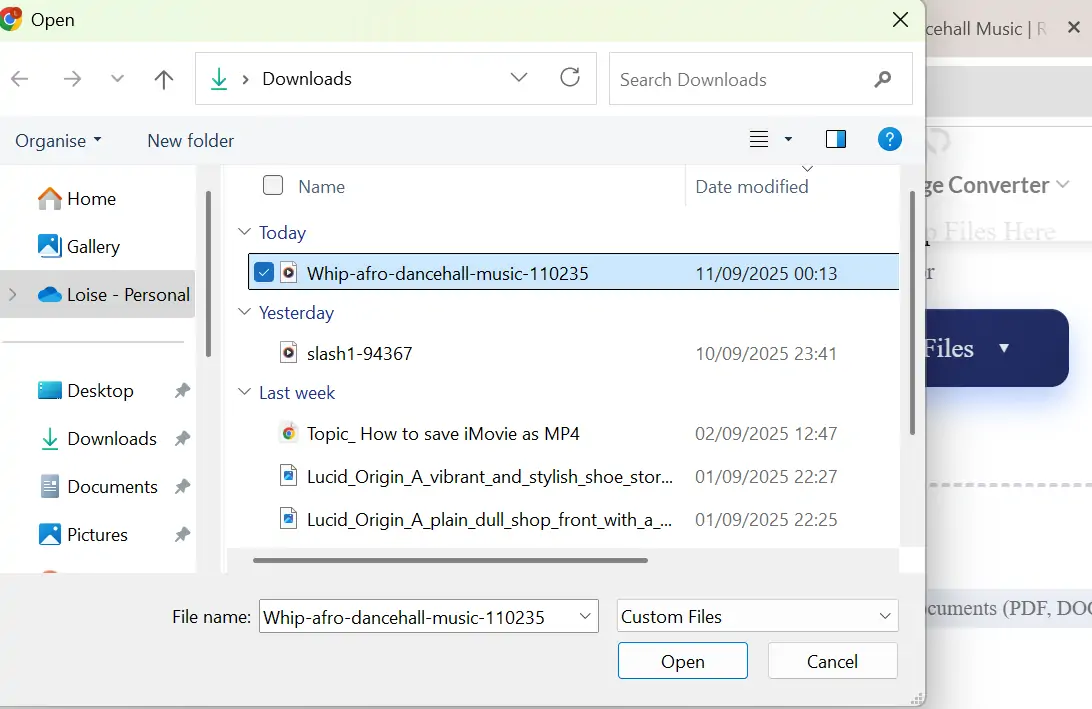
- Go to the AhaConvert website and click Choose Files. It will ask you to select the source of the file.
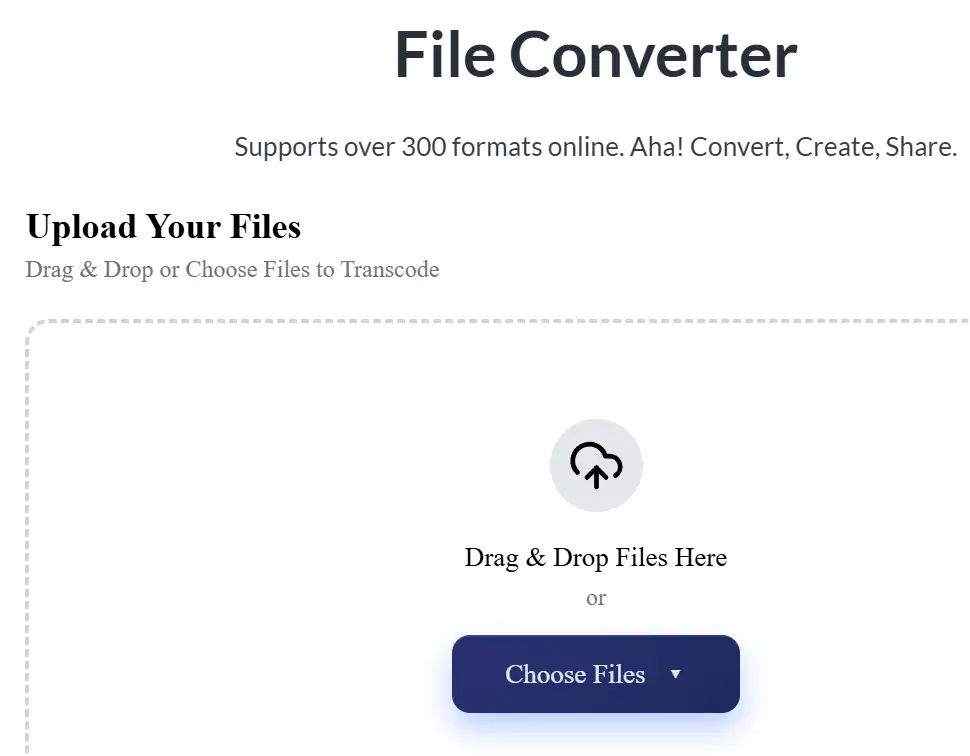
2. Find the file or folder you want to convert and click “Open”.
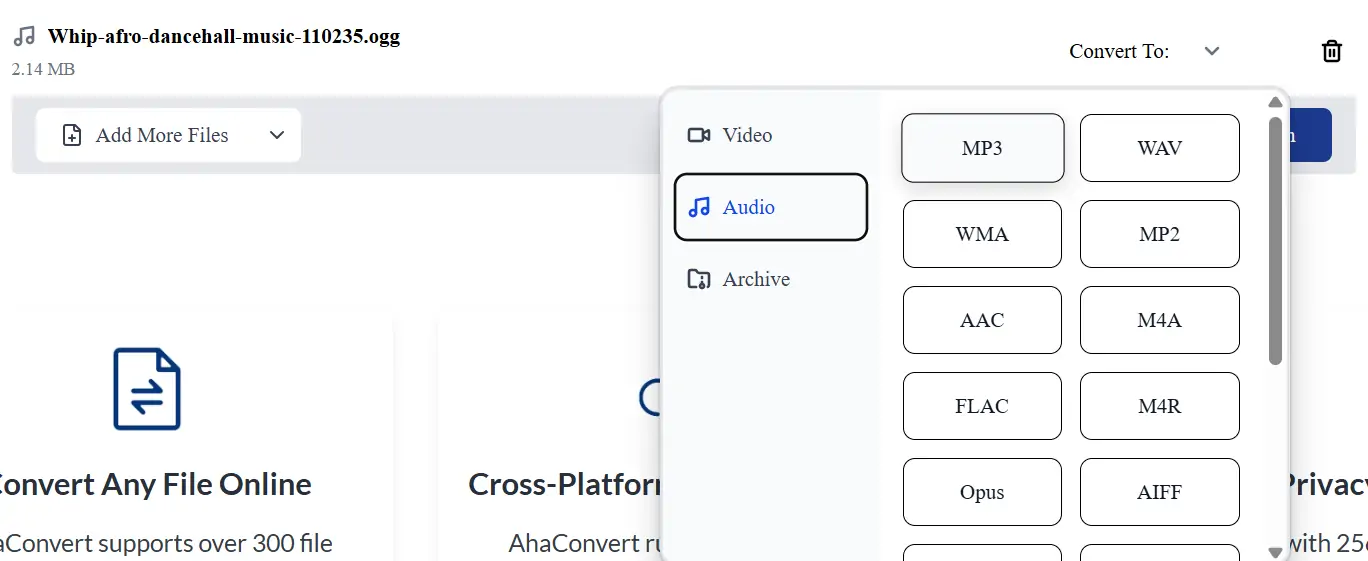
3. Click the “Convert To” Button.
4. Select the Audio option and choose MP3.
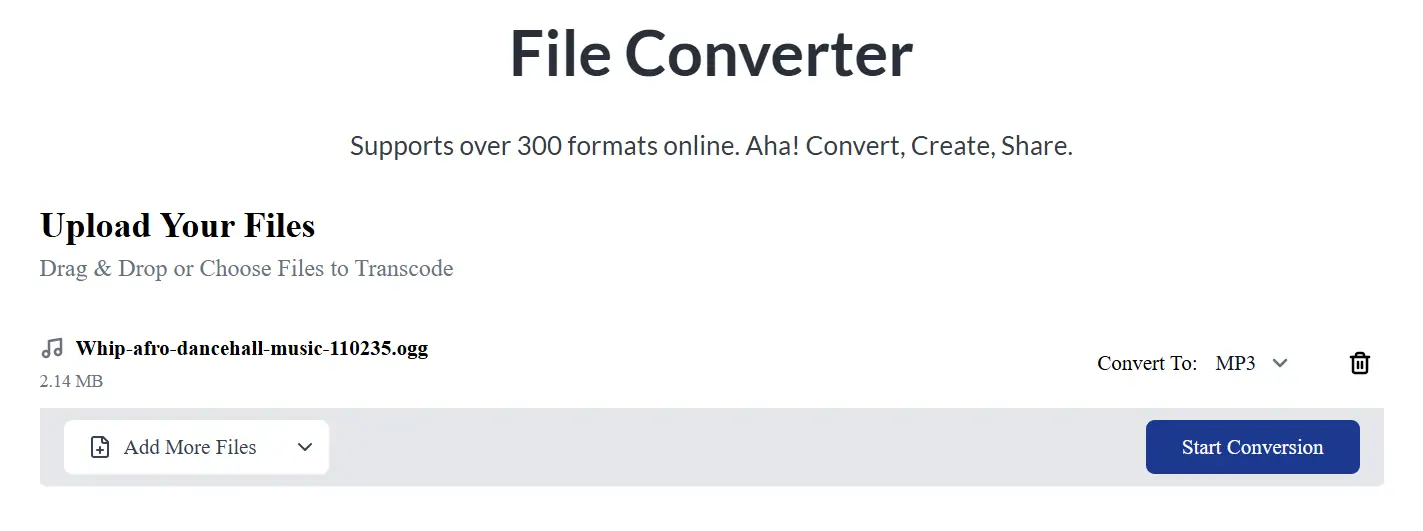
5. Click “Start Conversion”.
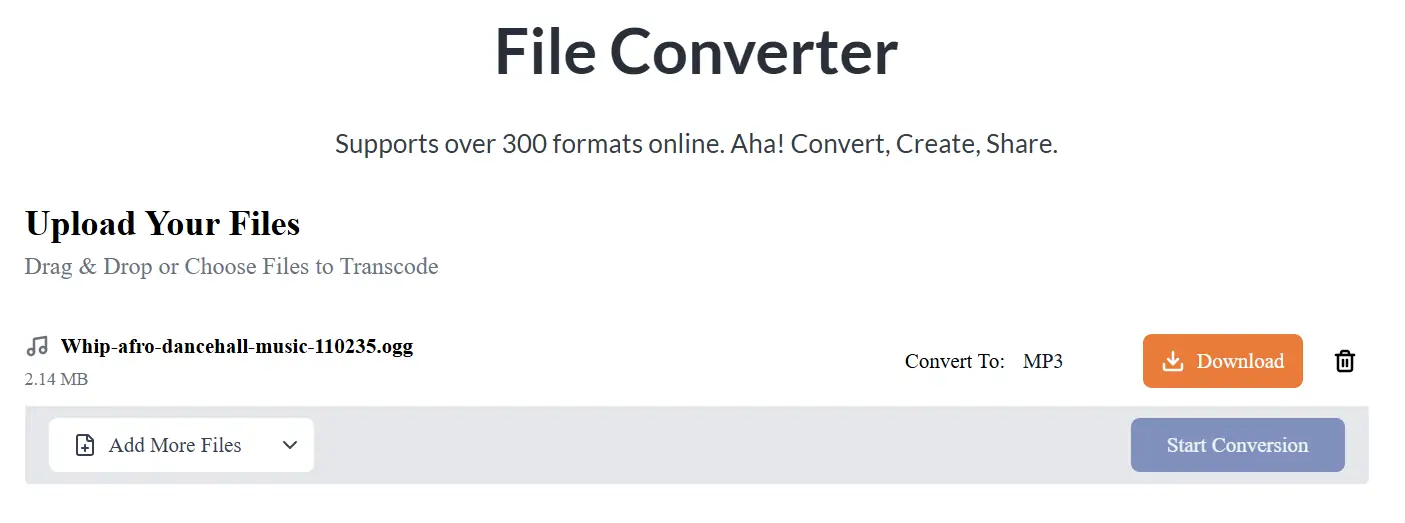
6. When AhaConvert finishes the conversion, you will see a “Download” button. Click on it to save the MP3 file onto your device.
7. Click on the downloaded media to play it on your gadget’s media player.
Play OGG Files on iPhone Using OPlayer Lite
iPhones cannot play OGG files natively. Apple supports select music formats, including MP3, AAC, AIFF, and WAV. If you don’t want to convert OGG files every time you want to listen to a new song, your best bet is to install an OGG player app to listen to music that comes in an OGG format.
- Head to the App Store and search for OPlayer Lite.
- Click Get to install the app on your device.
- Open the Files App at the bottom of your homescreen.
- Go to the location where you have the saved OGG files. This can be directly on your iPhone storage or iCloud.
- Navigate to the OGG file or folder and tap Select.
- Tap Move, then select OPlayer Lite.
- Tap Move again to copy the selected files from their original location to the OPlayer Lite folder.
- Open the OPlayer Lite app. Go to My Documents to see the saved files.
- Tap on any desired OGG file to play it using the OPlayer Lite app. You can go back and forth between tracks using the left and right buttons like you would on other music players.
Play OGG Files using the OPlayer HD Lite App on iPad
Just like iPhones, you cannot play OGG files on iPads either. Fortunately, the OPlayer HD Lite app allows you to play saved OGG files similar to iPhones.
To use the OPlayer HD Lite app for OGG audio:
- Install the OPlayer HD Lite app on your iPad from the App Store.
- Once it’s installed, open it and tap the folder icon on the left menu.
- Click on File in the new menu. You will see the Files app and options to browse files on your iPad.
- Tap on the Location where your OGG files are stored. If it’s located in your iPad storage, tap on it. The file will open and play in the OPlayer HD Lite window. This will allow you to control the music on the timeline bar.
Foobar2000 OGG Media Player for Android
If you’re looking for an audio player that works great on Android devices, Foobar2000 is a remarkable choice. While it was primarily developed for the Windows Operating System, its Android version, released in 2016, supports a variety of video formats. These are OGG, WAV, AIFF, AAC, MP3, and FLAC.
Advantages of Foobar2000 for playing OGG Files
– Foobar2000 offers advanced audio tools like resampling options, gapless playback, and DSP effects. You’ll like that it delivers unaltered music, meaning it won’t change the quality of OGG files while playing them.
– Foobar2000 allows you to tailor its user interface, appearance, and functionality to your preferences. These include visualizations, skins, components, and layout options.
Disadvantages of Using Foobar2000
– Foobar2000 online streaming. It’s ideal for local music playback and management. If you want to play OGG files online or are looking to integrate the player with streaming platforms, you will find it lacking.
– While Foobar2000 comes with lots of optimization options, it has a steep learning curve. Thus, it’s not best for beginners.
To use Foobar2000 to play OGG files on Android:
- If your OGG files are stored on your computer, first transfer them to your Android device.
- Install the Foobar2000 Android app from the Google Play Store and open it.
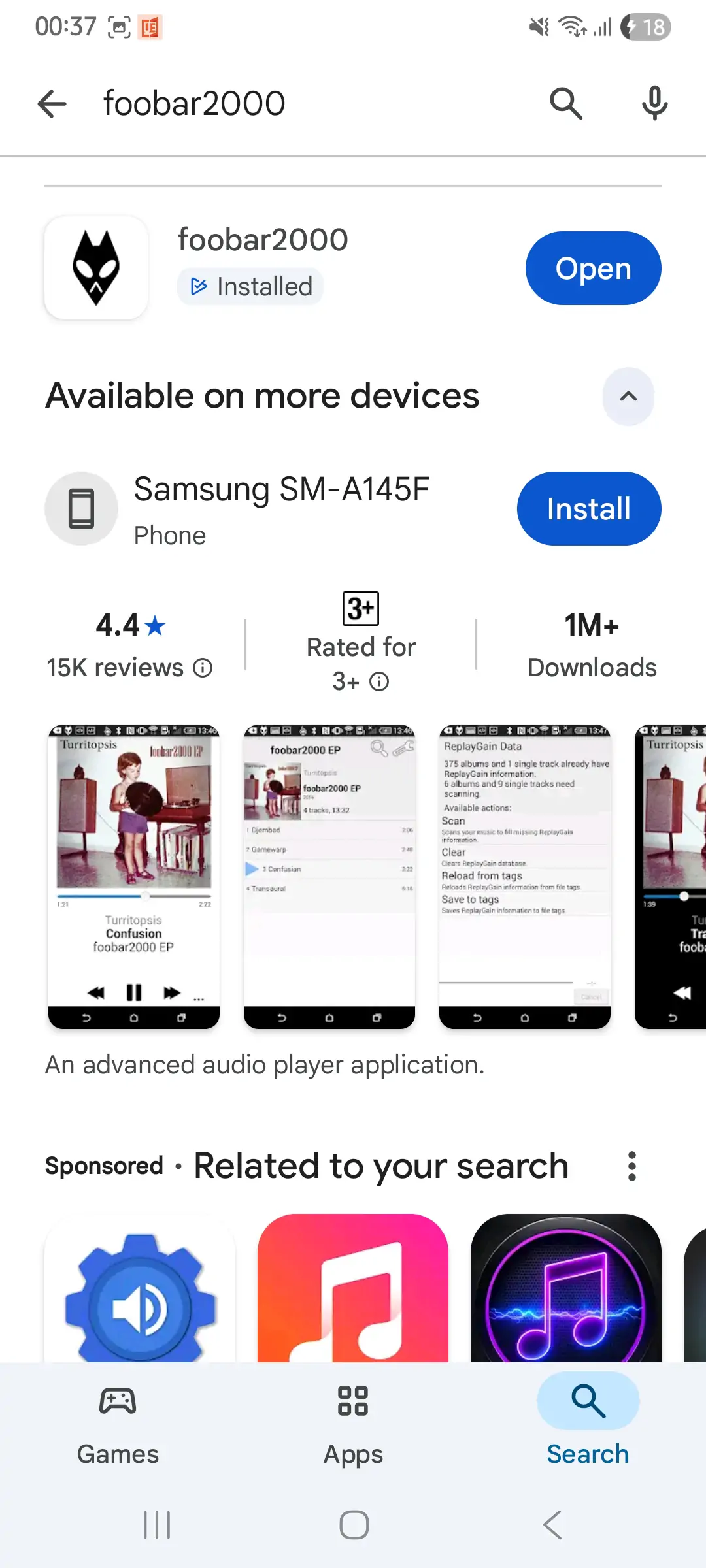
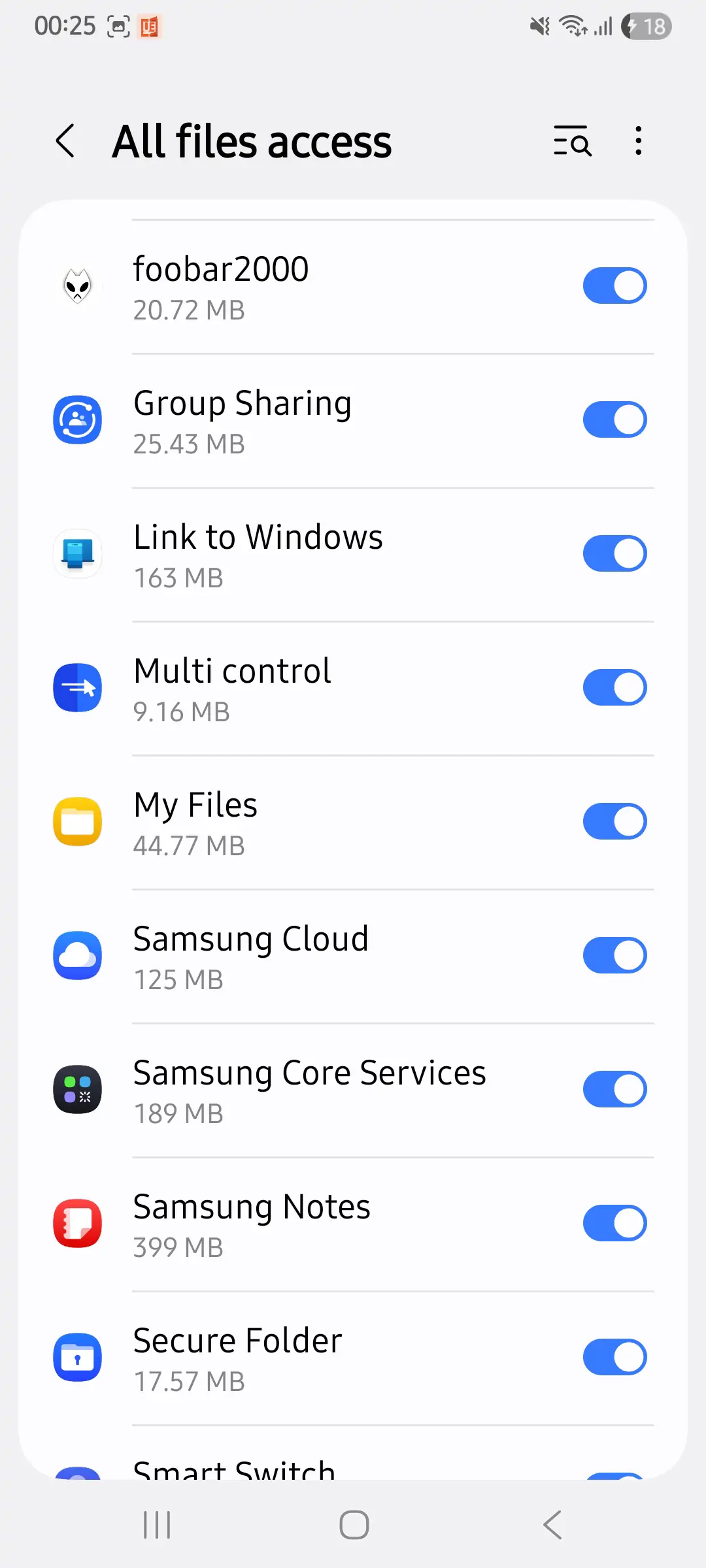
3. Allow Foobar2000 access to your phone’s media files.
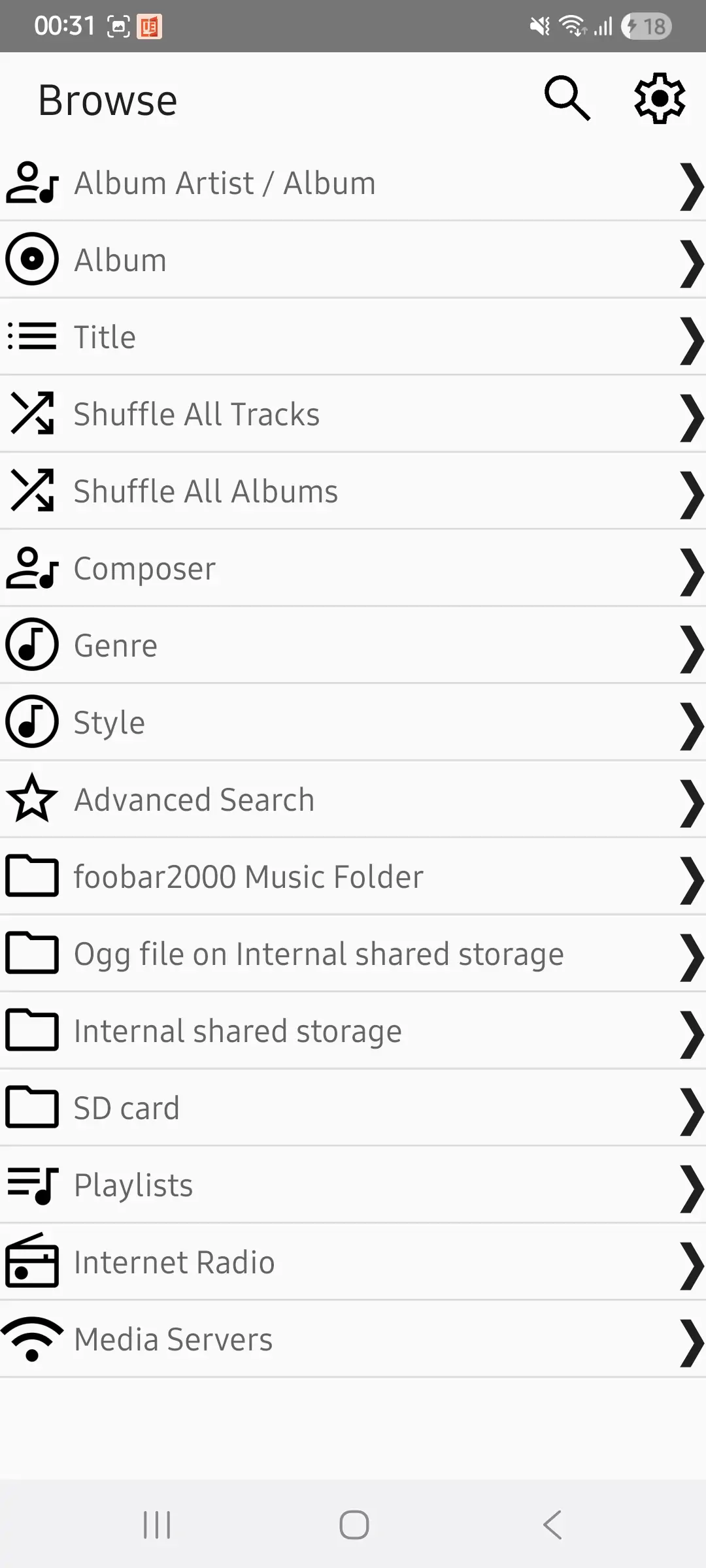
4. Find the folder with the OGG files from your phone’s storage.
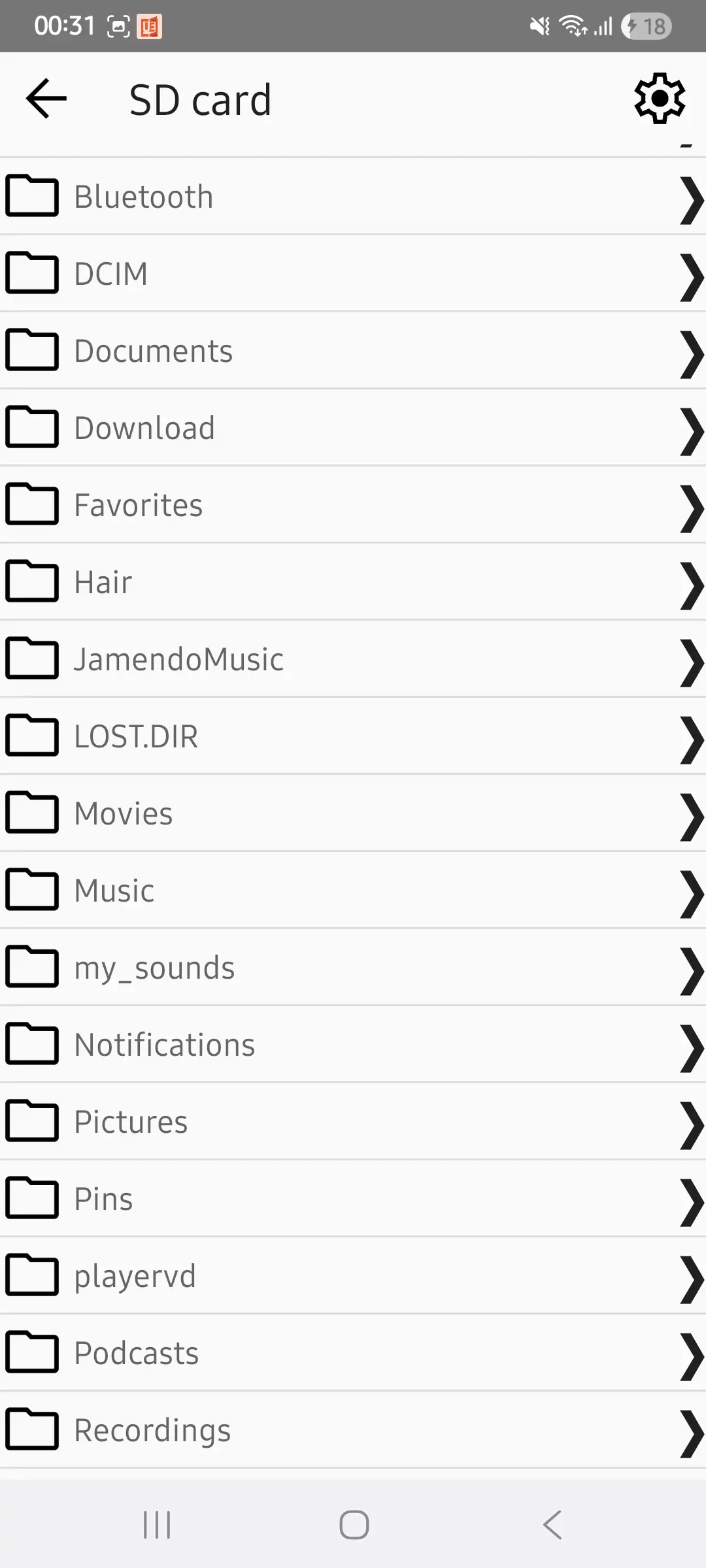
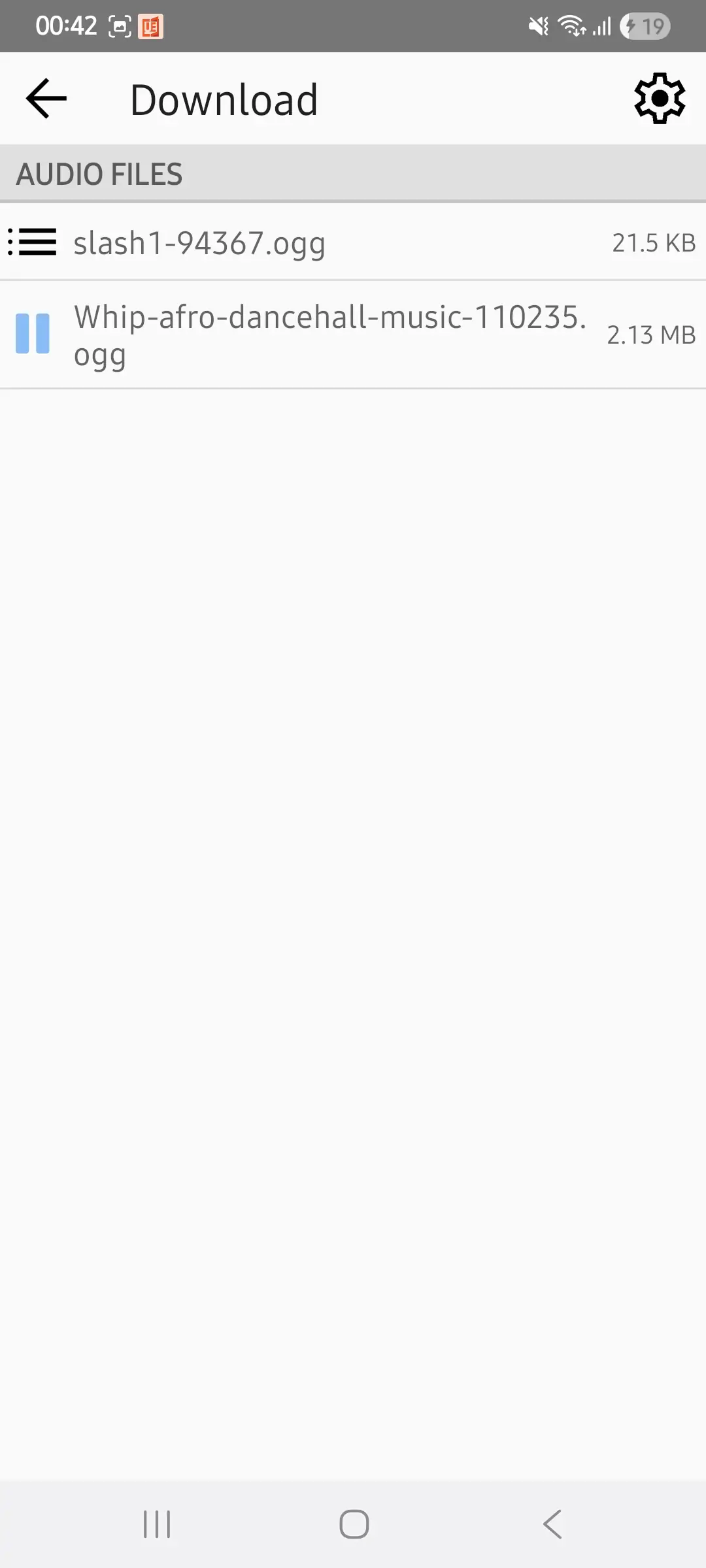
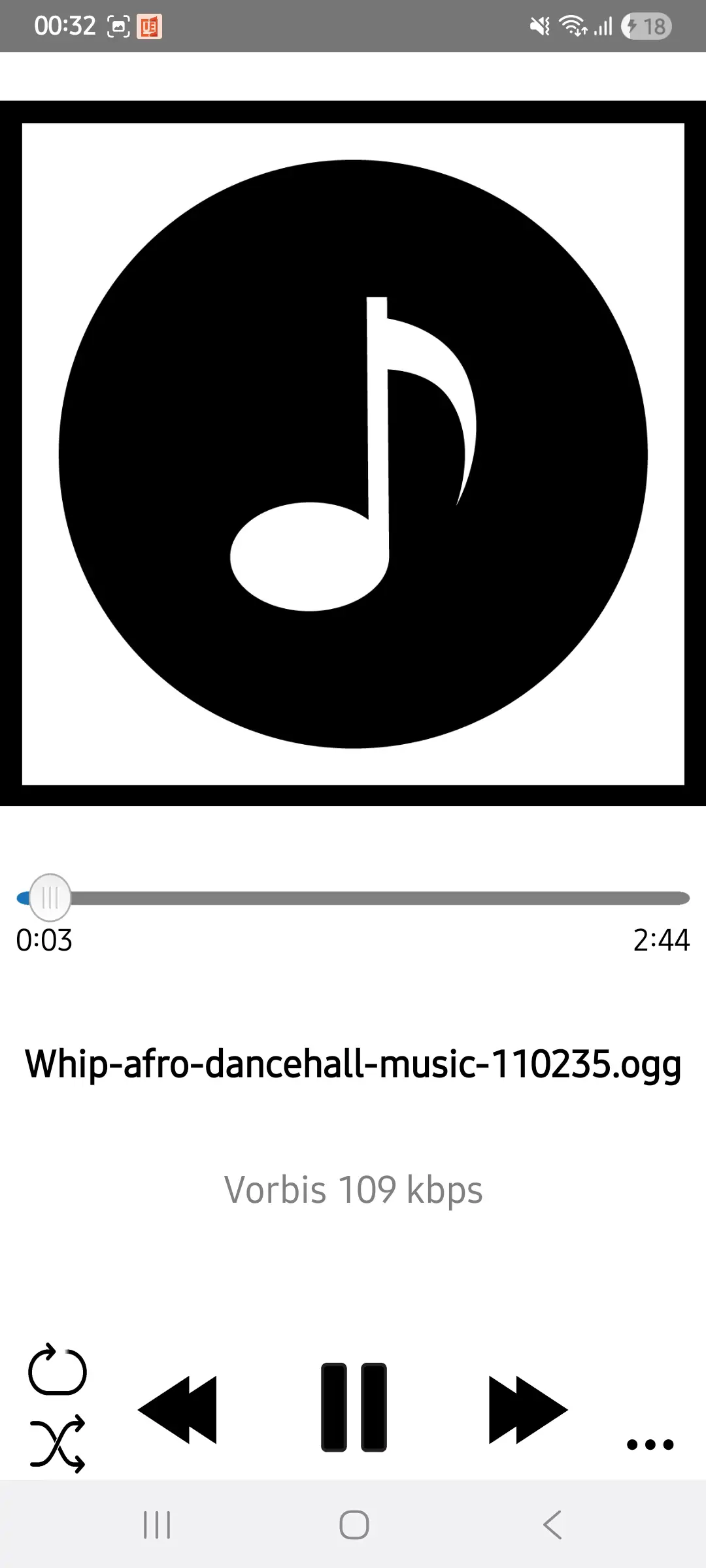
5. Tap on the OGG file you want to play and listen to music or watch videos using Foobar2000 Android.
What If Your OGG File is Still Not Playing
Tried all these options, and your OGG file still won’t play? Check the file extension. Some file formats have file extensions with letters that could suggest they are OGG files, but they are not. Look out for files with these extensions:
– OGZ (Cube Engine 2) Gzip compressed map file;
– OGS by OriginLab, a graphing and data analysis program for scientists and programmers;
– OGF a 3D model used in the S.T.A.L.K.E.R game series by GSC Game World.
OGG files have the .ogg (general OGG audio), .oga (audio), .opus (high-quality), and .ogv for video.
Frequently Asked Questions
1. Is OGG a video or audio file?
An OGG file is a multimedia file format. It can hold both audio and video files. You will see the .ogg, .oga, and .opus file extensions for audio files and the .ogv for video files.
2. How to make an OGG file?
To make an OGG file, you need an audio editor like Adobe Audition, Audacity, Ocenaudio, or Ableton Live. You can also convert other file formats, like MP3 files, into OGG files using an online file converter like AhaConvert.
3. Which media players open OGG files?
Various media players can play OGG files. These are VLC, Windows Media Player, MPlayer, Foobar, and Google Drive, among others. You can find third-party apps compatible with OGG files for Windows, Android, and iOS devices.
4. Is an online OGG player safe to use?
Most Online OGG players are safe to use. For example, you can use safe browsers like Chrome, Firefox, and Opera to play OGG files or open OGG music formats with Google Drive. Alternatively, you can use an online converter that uses the AES-256 encryption standard to protect the files you upload.
5. How to view an OGG file?
To view an OGG file, use a dedicated media player like VLC. VLC plays OGG files without an issue. On the other hand, you can use the Chrome browser or Google Drive to play any OGG media.
Conclusion
Playing an OGG file needn’t be complicated. Start with the VLC media player for Windows and Mac, as it comes with built-in codec support for OGG. Windows Media Player is another excellent method for OGG when you have the Windows Media Extension Package Installed.
On iPhones and iPads, go with the OPlayer Lite and OPlayer HD Lite apps. You can enjoy OGG music on Android using the Foobar app. Lastly, convert OGG files into MP3 and other formats supported by your media player.