Blogs
How to Download Music to an MP3 Player From Any Computer
Tired of disruptions and considering switching to a portable music player? Here’s everything you need to know about how to download music to your MP3 player.
Get an MP3 and Be Free!
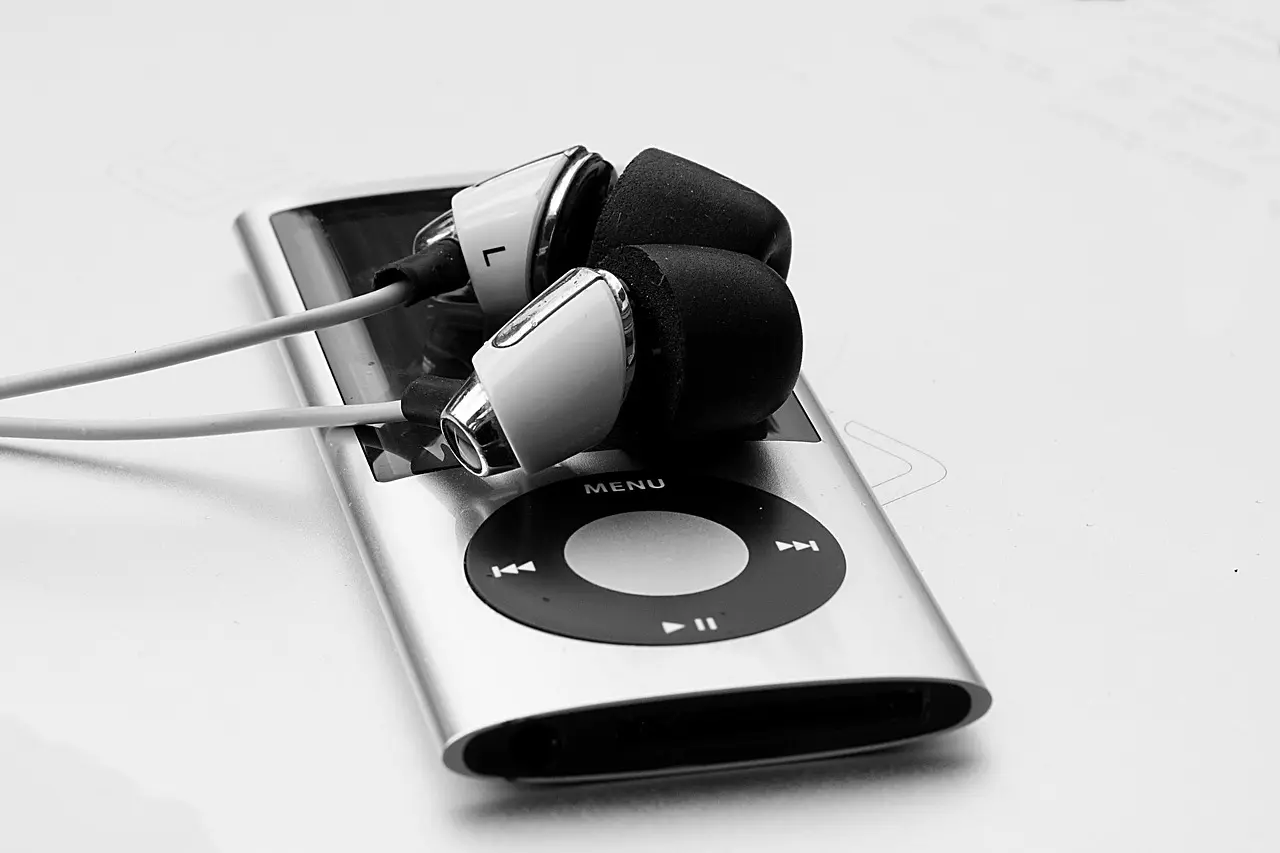
Image Credit: Pixabay
You will not know what you’re missing until you switch to an offline portable device. Streaming services are dope because of the vast content they provide. However, once your data finishes or the internet becomes unstable, accessibility ends.
What about the subscription fees of streaming services? They quickly add up over time. Even if you can afford them, you still don’t own the audio. Your access depends on your service provider.
An MP3 device frees you from recurring payments and unsolicited suggestions. Switching to it also means that you are no longer at the mercy of streaming services vs. artists’ feuds.
MP3s, however, come in different types. That means that your choice determines your experience. Below are the common types and categorizations of these devices, along with their benefits.
Types of MP3 Devices
Some MP3 players are completely wireless, while others require cables for connection. Find out which is yours and the things you may need for downloading from the table below.
| MP3 Category | Examples | Main Pros | Needed for Connection |
|---|---|---|---|
| Based on Storage Mode | 1. Hard Drive Players | Large storage capacity | A USB cable |
| 2. Flash-based | Portable and resilient | Software (iTunes), USB cable | |
| 3. CD Players | Can play old CDs & digital files | Music download is not supported | |
| Modern & Specialty | 1. High-Resolution | Superior sound quality | USB Cable, MicroSD |
| 2. Multifunctional | Wireless, FM Radio, Voice Recorder | USB Cable | |
| 3. Smart MP3 Players | Run on an OS like Android; support streaming. | Internet, USB Cable | |
| 4. Integrated Devices | Embedded in other devices like Flash drives | USB Cable |
What to Consider Before Buying an MP3 Player
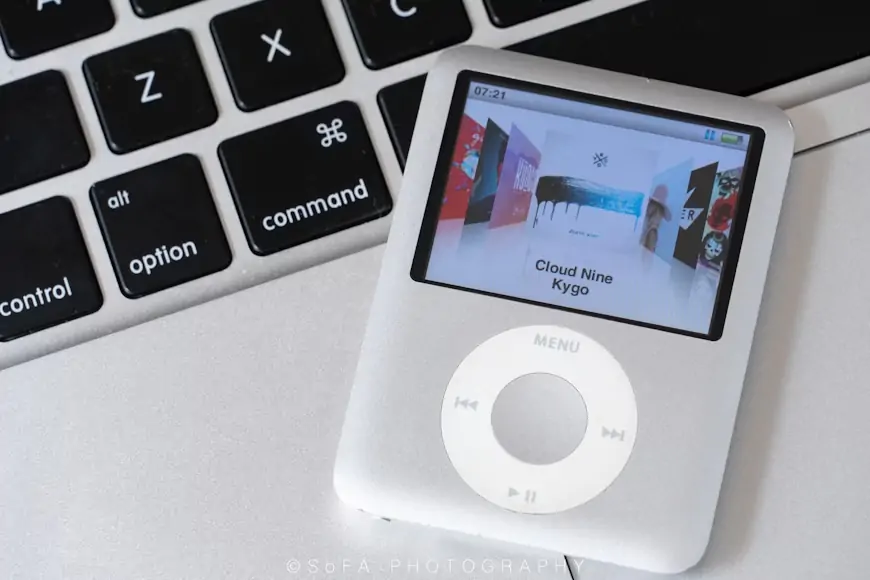
Image Credit: Unsplash.com
If you’re moving your music library to an MP3 device, you need to consider the storage capacity. That means you’ll need a Hard Drive or Flash-based player. They are the only category of MP3s with an almost limitless capacity for thousands of files. However, for just a few favorite songs, other considerations come first.
For instance, your personality and how you intend to use the device also matter. Do you listen to the radio often, or do you regularly make voice recordings? You can have everything in one place by purchasing a multifunctional MP3 player. It ensures that you don’t have to carry many things at a time.
Similarly, regular travelers and sports enthusiasts often lack the space for large gadgets. That makes portability a necessity. Good enough, these portable players are very rugged and last for years.
If you’ve already purchased a suitable MP3 device, it’s time to explore how downloading music to it works.
How to Download Music to Your MP3 Player From a Mac
Mac users get their favourite songs from iTunes or Apple Music streaming services. Access to the vast catalogue is by subscription. When you subscribe, you can also download and send to an external device like an MP3 player.
Moving music from iTunes or Apple Music to your MP3 requires three steps.
Step 1: Find and Download the Song
Follow the steps below to download songs from your Apple Music app or iTunes to your Mac or Music Library:
- Find the Music app on your Mac and open it.
- Type the song’s title into the search bar to find it. You can also browse the library manually if you’ve forgotten the title.
- Add the album or music to your library. If it’s a song, drag your pointer over it and click the three dots (More button) to choose the “Add to Library” option. If it’s a playlist or album, use the plus sign to add to your library.
- In your music library, hover your mouse over the file and click the downward arrow to download the file.
Step 2: Convert Your Apple Music to MP3
Songs from iTunes and Apple Music are usually in .m4a and .m4p formats. This means you have to convert to MP3 before sending them to your device. You can do this through the GarageBand or Apple Music app. See the steps below to convert your music file.
How to Convert Apple Music to MP3 Using GarageBand
- Double-click the GarageBand application on your MacBook and choose File > New > Empty Project.
- At the sidebar of the Empty Project window, select “New Project.”
- Select Line or Mic in the Create New Track window that results from step 2.
- Look for the file you want to convert from your Mac’s Finder and drag it to GarageBand’s Tracks area.
- Uncheck the Metronome icon to turn it off.
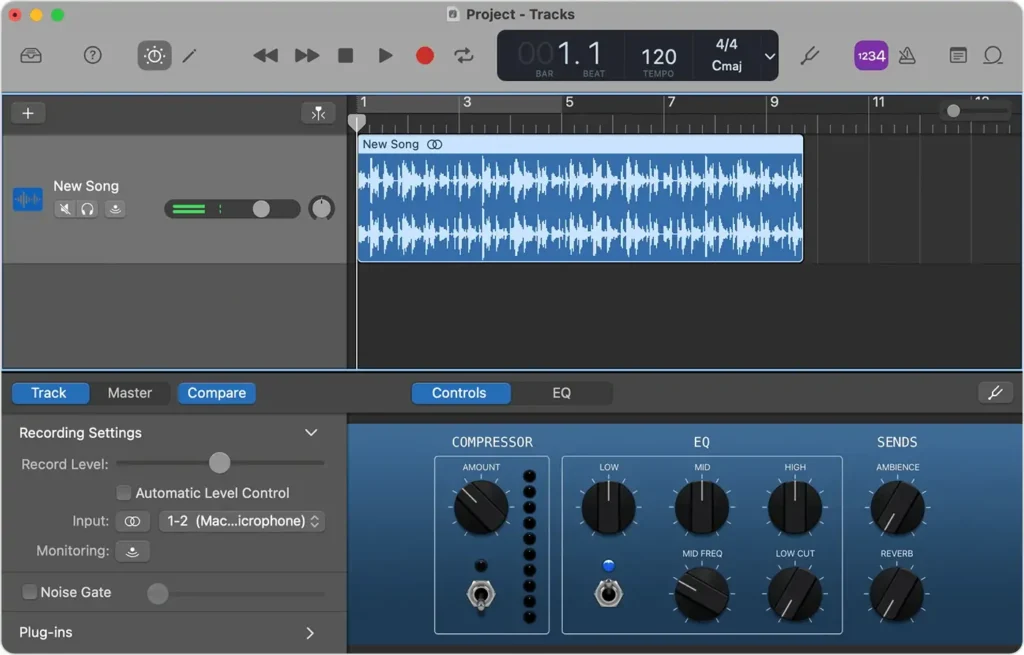
6.From the Tracks area on GarageBand, click on the file and select Share > Export Song to Disk.
7.Select MP3 and edit the file name (optional) from the Export Song to Disk window.
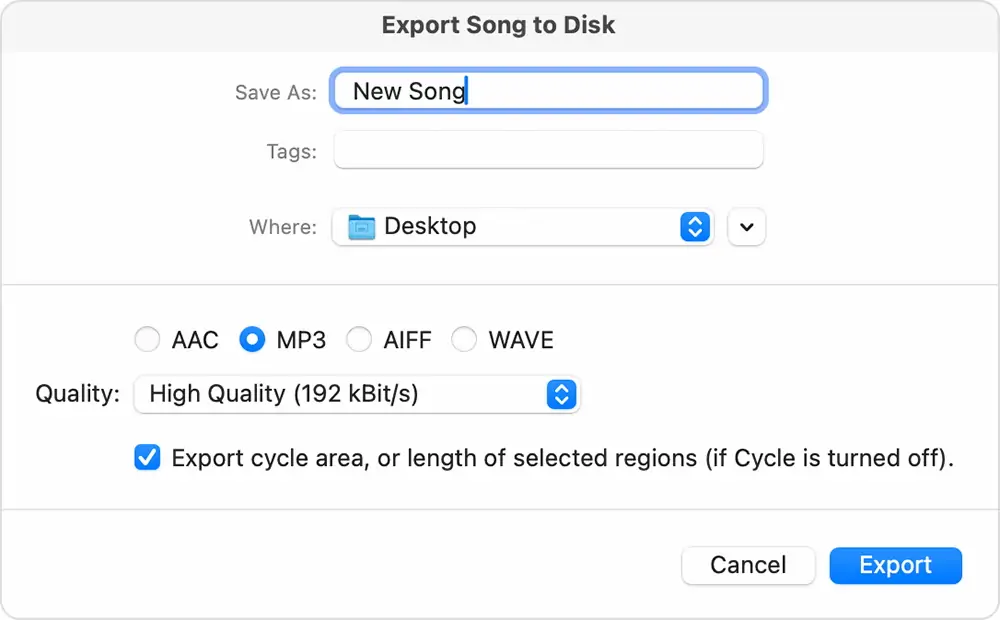
8. On the same window, choose your quality from the menu and check the “Export cycle area.”
9. Determine your export location and export. You can transfer this newly converted MP3 file to your Apple Music library if you prefer.
How to Convert Apple Music to MP3 Using the Apple Music App
- Open the Apple Music app on your MacBook and choose Music > Settings from the menu bar.
- Check the tabs and click on File > Import Settings.
- From the pop-up menu arising from step 2 above, select MP3 Encoder and click OK.
- You can select the M4A file from the Apple Music playlist or drag it from its location on your Mac.
- Follow this order to complete the conversion: File > Convert > Create MP3 Version.
- Bravo! Your new file is now in the Apple Music library, usually next to the original one.
Step 3: Transfer Your Converted File to Your MP3 Device
Most MP3 devices require a cable for connection. In some cases, they come with special apps that allow wireless syncing. For this guide, we will assume that you have a USB connection handy. In that case, here are the steps to follow:
- Connect your MP3 device to your Mac using the USB cable
- Launch the Apple Music app from your desktop and check for your MP3 device in the sidebar of your Music app.
- Go to your music library and locate the files you converted in steps 2 above.
- Drag and drop the file into your MP3.
- Eject your device first before disconnecting the cable.
How to Download Music to Your MP3 Player From a PC
Unlike MacBooks, PCs don’t have a dedicated music app. You can find songs from YouTube, Amazon Music, Google, or Apple Music. Thankfully, some of these apps provide their songs in MP3 formats, which means you don’t need to convert.
Except for Google, most music apps require a subscription for access and offline use. Similarly, you need the desktop versions of Spotify and Amazon Music to download.
If you have all of these in place, proceed to the steps below to download music from your Windows PC to an MP3 device.
- Find and download your favourite tunes on an app of your choice. It can be Spotify, Amazon Music, or from a direct Google Search. Remember that you need a subscription if using Spotify and co.
- Select MP3 as your audio format when downloading and save it in your music folder. Check to see that the files download correctly.
- Connect your MP3 device to your PC using a compatible USB cable
- Find your device in the sidebar of the Windows Explorer page. To do this, press Win + E and check the left-hand side.
- Open another Windows Explorer page to locate the folder containing the downloaded music.
- Copy these files by holding the Ctrl key and selecting the songs you want. Once you finish, right-click to select the “copy” option.
- Paste the songs directly to your MP3 device in the other Explorer window and wait for the process to finish.
- Hover over your device’s name in the sidebar and right-click to choose the “Eject” option from the menu. You can now disconnect your cable from the PC.
Conclusion
With a paid subscription to any premium music app, you can download music to your MP3 device. Once the songs are there, it’s up to you to decide when you want to delete them.
Frequently Asked Questions
How do I transfer a song to MP3?
To transfer a song to an MP3 device, you need a USB cable and a PC or MacBook. Download the song to your Music Library and connect your MP3 player to your computer with the cable. Drag and drop the music files from their location on your computer to your MP3. Once the transfer is complete, eject and remove the cable.
Where can I find music for my MP3 player?
You can find music for your MP3 player on music apps like Apple Music, iTunes, Spotify, and Amazon Music. If you Google ‘MP3 song download,’ you may be able to find some on the internet, too. YouTube also has thousands of songs, which you can access using an MP3 Converter.
Can I transfer music from Spotify to an MP3 player?
No, you cannot legally transfer music from Spotify to an MP3 player. That’s because Spotify songs are DRM-protected. The app only supports offline download to its Music Library. However, if you have an active subscription, you can use some third-party apps for the transfer.